Last updated:
May 2026 Product Updates
May's headline release is Smart Templates v2, which makes layout placement precise and predictable enough for real projects. Alongside it: Multi-Building Projects for campus and mixed-use schemes, a Classifier in Program Mode that routes AI prompts automatically, and editable array controls for Unique copies.
Here is what shipped and how it fits into real workflows.
Smart Templates v2
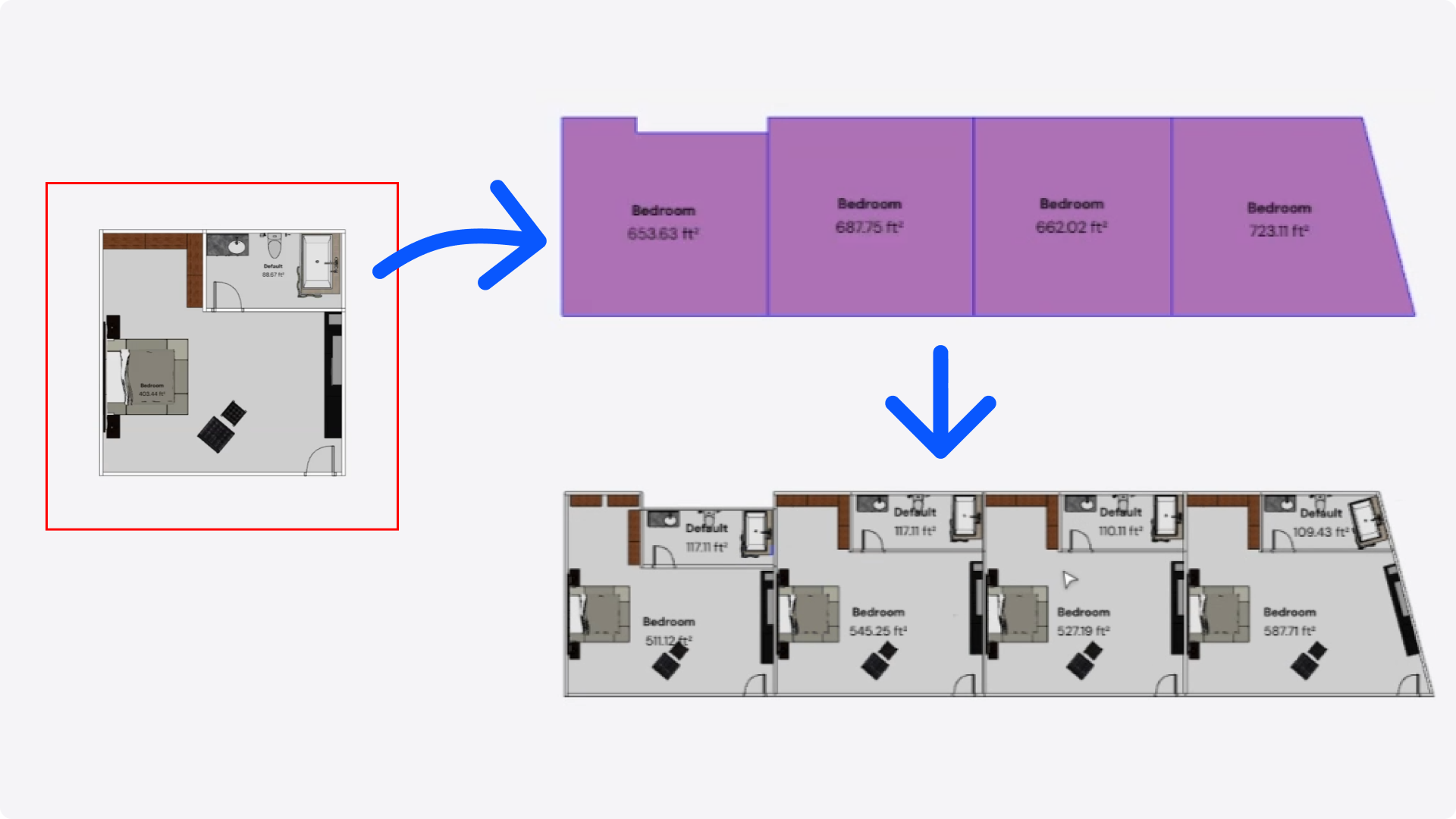
Smart Layouts lets you take a configured room layout, containing walls, furniture, doors, and windows, and place it onto any target space in your project. Snaptrude adapts the layout to match the geometry of each target space automatically. V2 makes that adaptation significantly more precise.
Two things change in V2.
First, you no longer need to pre-group a layout before using it as a source. Marquee-select any set of elements on the canvas and use them directly. Grouped layouts continue to work as before.
Second, interior walls and furniture now adapt relative to the walls they are anchored to, not just the centroid of the target space. Interior walls re-anchor to the equivalent exterior wall in the target space and adjust in length to fit. Furniture reads each piece's relationship to walls in the source and preserves it in the target: wall-hugging pieces stay against their wall, grouped centre furniture moves as a unit.
How architects can use this
V1 proved the concept. V2 makes it practical for real projects. If you work with repetitive residential units, hotel rooms, or hospital bays, placing a configured layout onto dozens of spaces is now both faster and more accurate. The walls land where the design intent says they should, and furniture follows the same logic. The marquee selection improvement also means you can prototype layouts directly on the canvas without needing to group them first.
Multi-Building Projects
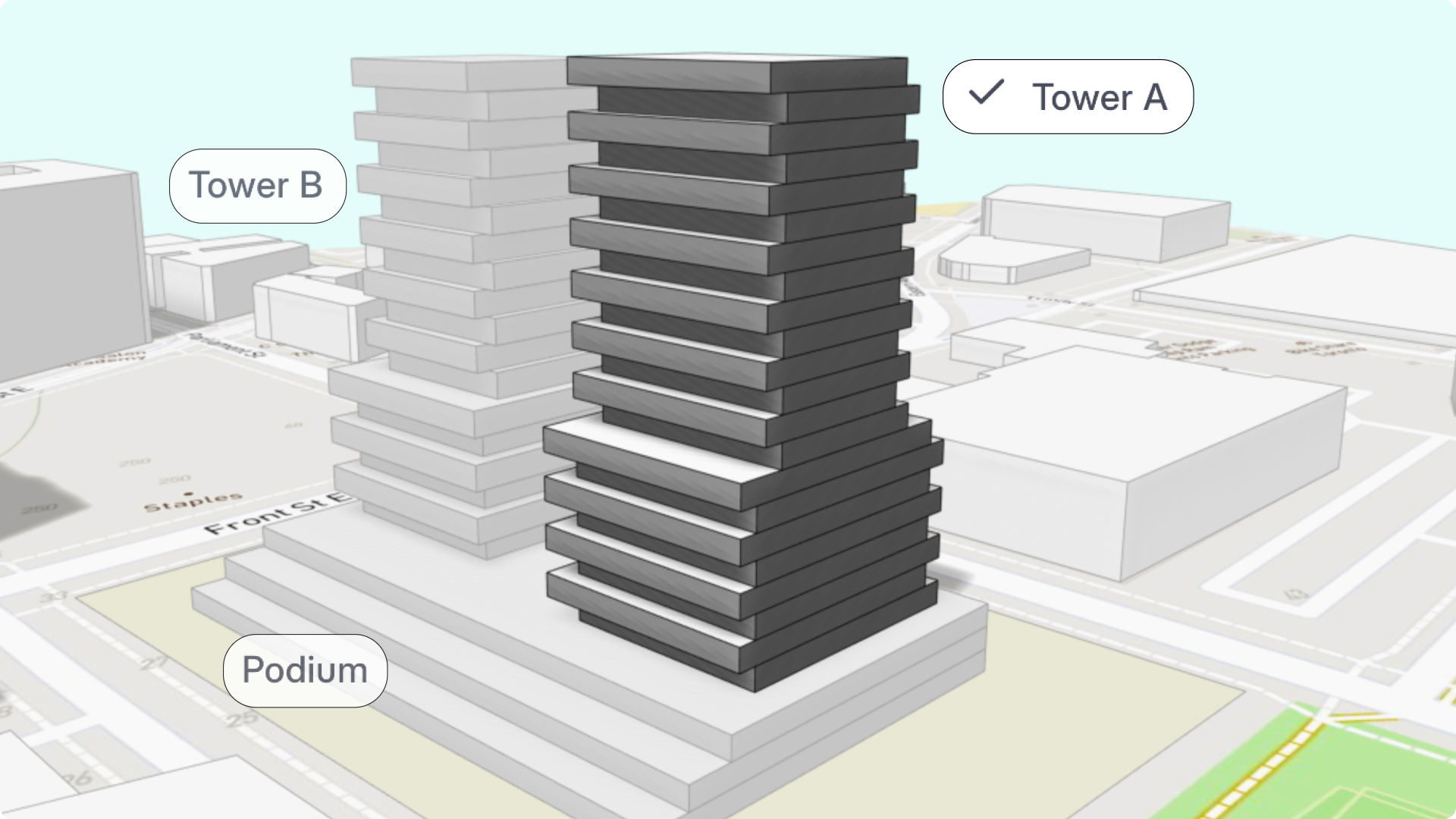
You can now design multiple buildings within a single project, each with its own stories, story heights, plans, and views.
Until now, every Snaptrude project had one global story setup. That works fine for a single building. It breaks down the moment your project has a tower and a podium, or a campus with buildings of different heights, or a mixed-use scheme where the commercial base and the residential block have nothing in common except a shared site. The most common workaround was keeping separate files per building and coordinating manually between them.
Each project starts with a default building. From there, you can add, rename, duplicate, or delete buildings as the project grows. Every building carries its own story count, story heights, plan views, 3D views, elevations, renders, and base offset relative to the project base point.
Stories are now per-building, not project-wide. You can add and remove stories, set heights independently, and open plans directly from the Stories panel, all without affecting any other building in the project.
When you duplicate a building, you choose how: story configuration only, or with geometry. The geometry option is useful for repetitive residential tower types in multifamily projects.
If something ends up in the wrong building, select it and reassign via the Object Properties Panel. The vertical position updates to match the new story heights automatically. Horizontal position stays manual.
Only one building is active at a time. Other buildings are visible as a read-only underlay by default, so you stay oriented without losing focus.
How architects can use this
Campus and mixed-use projects are where this matters most. A residential tower at 15' story heights and a commercial block at 20' can now live in one project, coordinated on one site, without the file-management overhead of keeping them separate. The same applies to podium-tower configurations, academic campuses with buildings of different heights, and any scheme where the site holds more than one distinct structure. All existing projects are automatically migrated to a single default building. Nothing is lost.
Classifier in Program Mode
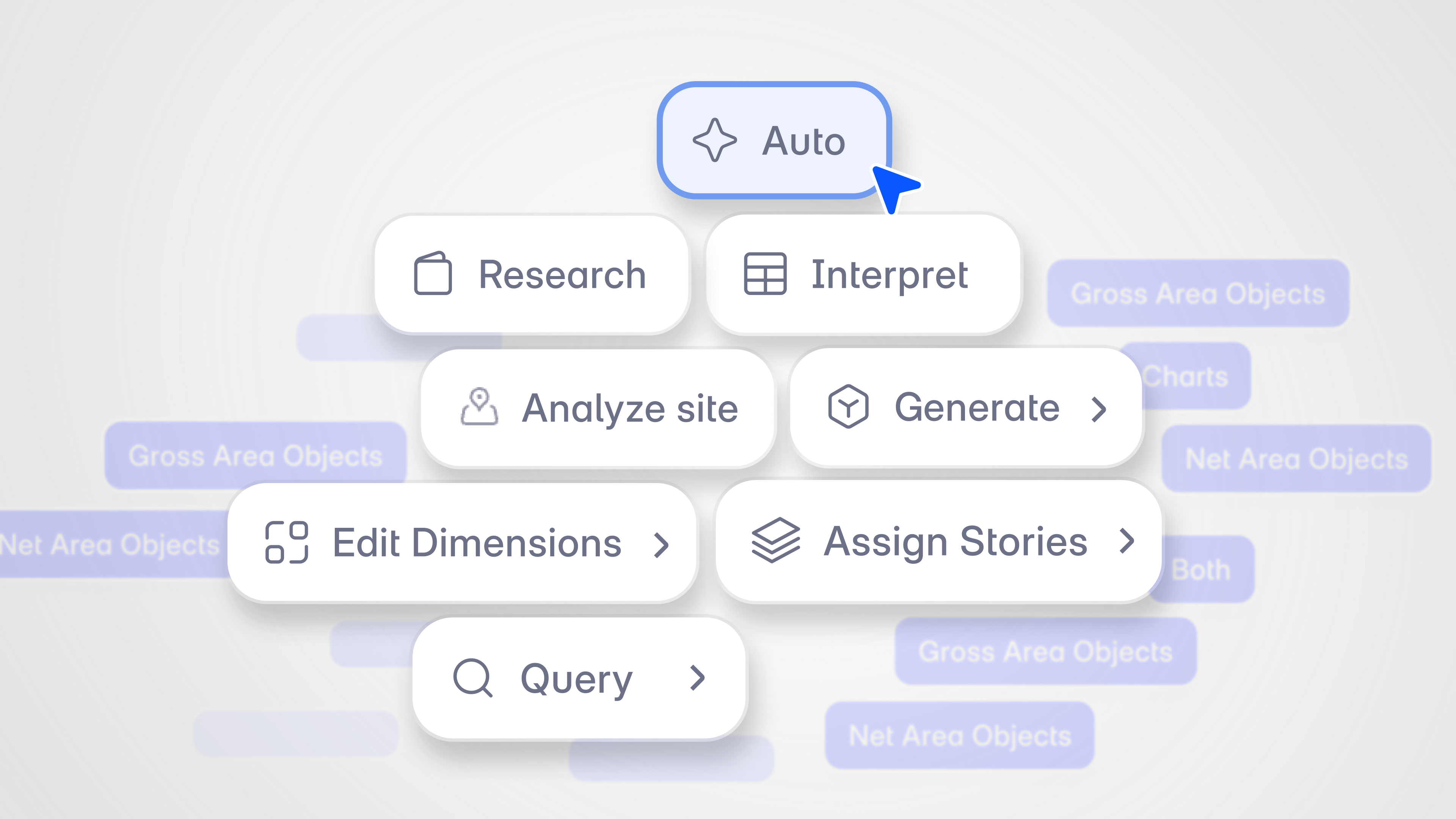
Program Mode now defaults to Auto in the agent dropdown. Instead of selecting an agent before typing, you describe what you want in plain language. The classifier reads your prompt and the current state of your program sheet, then suggests the right agent. You confirm and it runs.
If the suggestion isn't right, you can decline and pick an agent manually from the dropdown. The classifier is bypassed and your chosen agent runs directly.
The agent dropdown has also been reorganized with clearer groupings for when you want to pick manually. Auto is at the top. Research, Interpret, Analyze Site, Generate, Edit Dimensions, Assign Stories, and Query follow in a structured hierarchy.
How architects can use this
Knowing which agent to use was a small friction for experienced users and a real barrier for new ones. Auto mode removes it. For teams onboarding to Snaptrude's AI capabilities, this makes Program Mode significantly more approachable: describe the task and the tool figures out the routing. For experienced users, it saves the step of selecting an agent before every prompt.
Copy Array Controls for Unique Objects
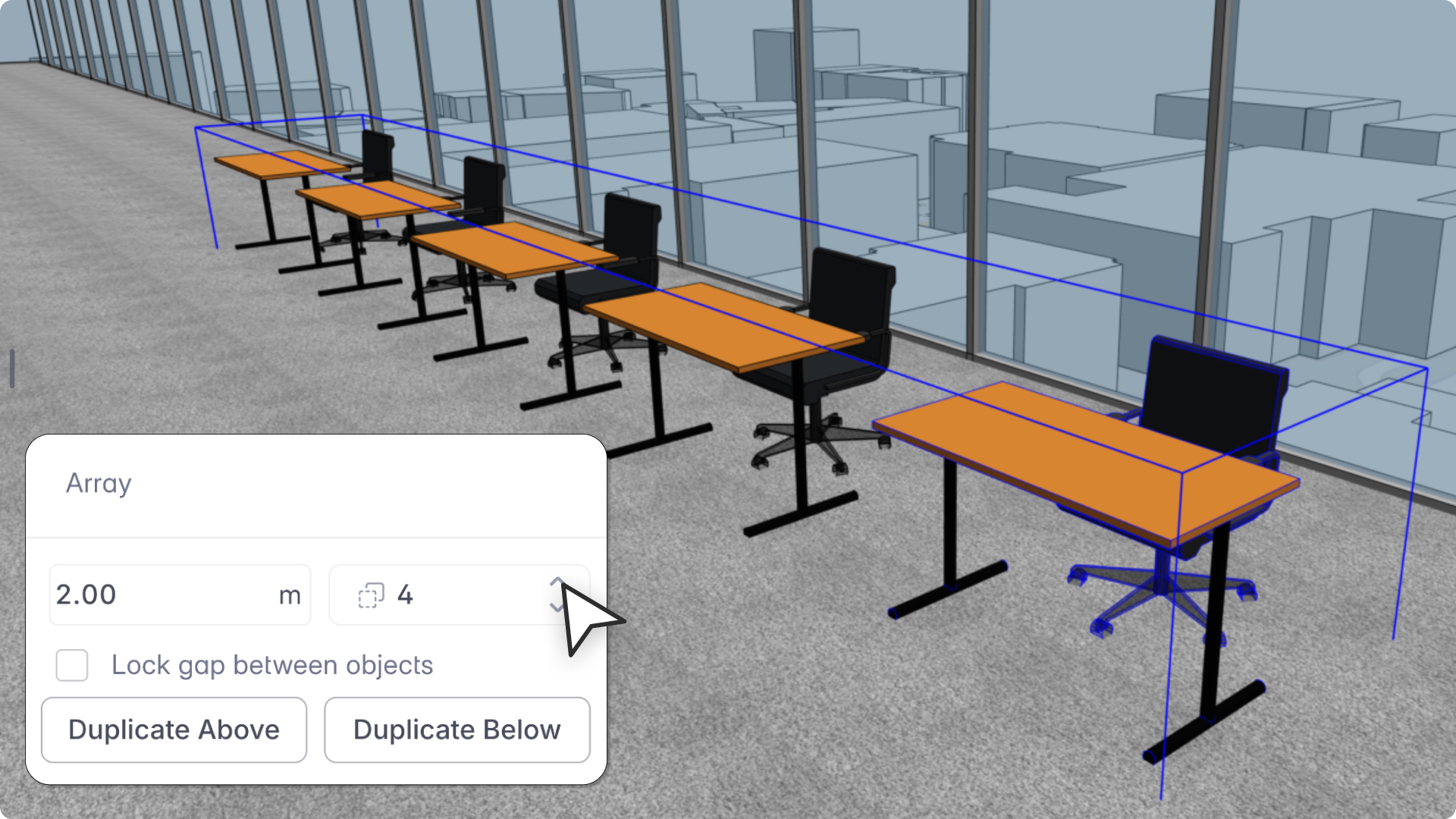
Snaptrude's Copy Array tool lets you duplicate objects as Instances (linked) or Unique (independent). Previously, only Instance-based arrays kept editable count and spacing controls after placement. Unique copies lost those controls once placed.
Now they don't. Reselect a Unique copy array after placement to adjust count and spacing from the Object Properties panel, without recreating it. Instance-only controls are hidden for Unique arrays so the panel stays clean.
Local geometry edits to individual objects don't affect array-level controls. Count and spacing stay adjustable regardless of what you've done to individual pieces.
How architects can use this
This matters any time you need copies that are independent from each other but still need to be adjusted as a group after placement: furniture layouts where each piece gets individual edits later, facade modules or window bays with spacing adjustments, parking bays, seating rows, and modular planning layouts. The expectation that you can come back and adjust the array, regardless of copy type, now matches how the tool actually behaves.
Related reading
- Custom Space Tags in Snaptrude: Classify Spaces Beyond a Single Hierarchy
- Area Panel Filters in Snaptrude: Stop Second-Guessing Your Area Numbers
- Configure Storey Visibility in Snaptrude: Underlays and Overlays
- Snaptrude 3.0: The Continuous Runway From Program to Proposals
In Summary
Smart Templates v2 is the main release this month, making layout adaptation precise enough for real repetitive projects. Multi-Building Projects addresses a fundamental limitation for campus, mixed-use, and podium-tower schemes. The Classifier in Program Mode makes AI-powered workflows more accessible to new users and faster for experienced ones. And Copy Array Controls for Unique Objects closes a workflow gap that made copying behavior inconsistent depending on which mode you were in.