Last updated:
Configure Storey Visibility in Snaptrude: Underlays and Overlays
You Can Now Control What You See on Every Plan View
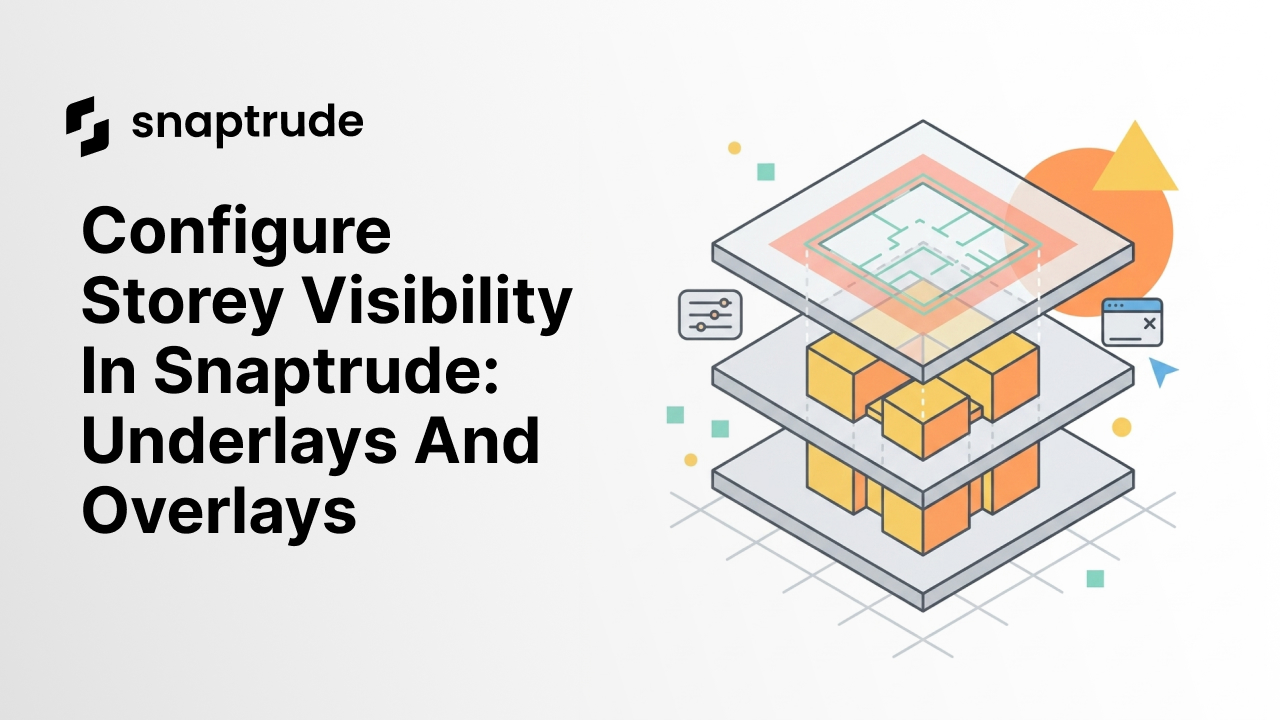
Snaptrude now lets you configure which storeys appear as underlays or overlays on any plan view, with independent styling for each. You decide what's visible, how it looks, and whether those settings carry across every plan view in the project. It's a small change in control, but it changes how multi-storey work feels.
Why do multi-storey drawings always end up with the wrong things visible?
If you've worked on a multi-storey project, you know this problem. You're in the third-floor plan, trying to design the unit layout. But you need to see the core and structural grid from the second floor below, because you have to line up with them. And maybe you also want to see the mechanical layout from the floor above, so you can coordinate shaft locations.
Most tools give yo u two options. Either you turn everything on (now the plan is so cluttered you can't see what you're actually drawing) or you turn everything off (now you're designing blind and hoping things align).
The real need is selective visibility. Show me the core from below, dimmed and in a gray line. Hide the furniture from above. Keep the structural grid visible across all floors. That's how architects actually think about reference geometry while they design.
On large projects, this gets worse. A hospital tower has different things that matter on each floor: patient wards, operating suites, mechanical levels, lobbies. Each plan view needs a different combination of reference storeys visible. Without control over that, you end up switching off visibility manually every time you switch floors, or giving up and designing with a cluttered canvas.
This is the kind of friction that we've been working to remove across Snaptrude. Small workflow problems that add up to hours of lost time across a project.
Key Takeaway: Multi-storey plans need selective visibility of reference storeys. Without it, you either design with clutter or design blind.
What Configure Storey Visibility actually does
You can now toggle which storeys appear as underlays or overlays on any plan view you're working on. Underlays show storeys below, overlays show storeys above. You decide which ones matter for the plan in front of you.
Each visible storey gets its own styling controls. Color mode, fill, line style, line type, and thickness are all configurable independently. Your current storey can be drawn in full color, the reference storey below can sit in a faded gray dashed line, and the one above can show as a thin blue overlay. Each reference serves its purpose without competing for attention.
There's an "update all views" option that syncs your style, label, and camera position choices across every plan in the project. Once you've set up how reference storeys should look, you can apply that standard everywhere in a single action instead of configuring each plan view manually.
And because these settings carry into Present Mode, your working drawings and your presentation drawings look consistent. The plans you use while designing are the plans you export, with the same visibility and styling applied.
Key Takeaway: You control which storeys are visible, how each one is styled, and whether those choices apply across every plan view in the project.
Why per-view control matters for how architects actually draw
The reason this feature matters isn't about what you can configure. It's about what it lets you stop thinking about.
When every plan view inherits the same visibility settings whether you want it to or not, you end up working around the tool. You hide and unhide storeys every time you switch floors. You create workarounds with layers. You screenshot plans to show someone a specific combination of references.
When plan views have independent visibility settings, those workarounds disappear. The third-floor plan remembers which reference storeys you want visible. The second-floor plan has its own combination. Each plan carries its own context and stays ready to work on.
For firms working on complex projects, this also changes how teams hand off work. A team member opening a specific plan view sees exactly what the plan was set up to show. They don't have to reconstruct the previous designer's mental model. The plan view is complete on arrival.
This connects to the broader direction we've been taking with Snaptrude's presentation and view workflows: what you design should be what you present, with minimal translation between the two. Configure Storey Visibility is part of that same philosophy, applied to the working drawings themselves.
Key Takeaway: Per-view visibility control removes the mental overhead of remembering which storeys should be on or off. Each plan view stays ready to work on.
Where this fits in the design workflow
Configure Storey Visibility is most useful on projects with meaningful vertical coordination. That includes most large-scale work: towers, mixed-use developments, hospitals, schools, anywhere decisions on one floor depend on what's happening on adjacent floors.
A few specific moments where it earns its keep:
Coordinating cores and circulation. You need to see the core and vertical transport from one consistent source and make sure every floor aligns with it. Set the core storey as a locked-style underlay across all views and you never lose that reference.
Checking structural alignment. Columns, shear walls, and load-bearing elements need to stack through the building. With the relevant structural storey visible as an underlay, you can see alignment without switching views.
Resolving mechanical and service coordination. Shaft locations, duct routing, and service cores need to coordinate vertically. Overlaying the floor above or underlaying the floor below gives you instant context.
Presentation-ready drawings. When the same plan views feed into Present Mode, your styling work during design becomes your presentation prep. No re-formatting plans for the client review deck.
For firms evaluating architecture design software, controls like this are often invisible until you don't have them. Once you do, going back feels like working with one hand tied.
A small feature that changes a daily workflow
Configure Storey Visibility isn't a headline feature. It's not an AI agent or a new mode or a major workflow addition.
But it's the kind of change that shows up in how the tool feels during a project. When you can trust that each plan view carries the context it needs, you stop fighting visibility settings and start focusing on design decisions.
That's the goal. Not more features. Better control over the ones you use every day.
Configure Storey Visibility is live in Snaptrude. Try it on your next project.
Frequently Asked Questions