Last updated:
BIM Software Upgrade Testing: A Production Model Checklist
TL;DR
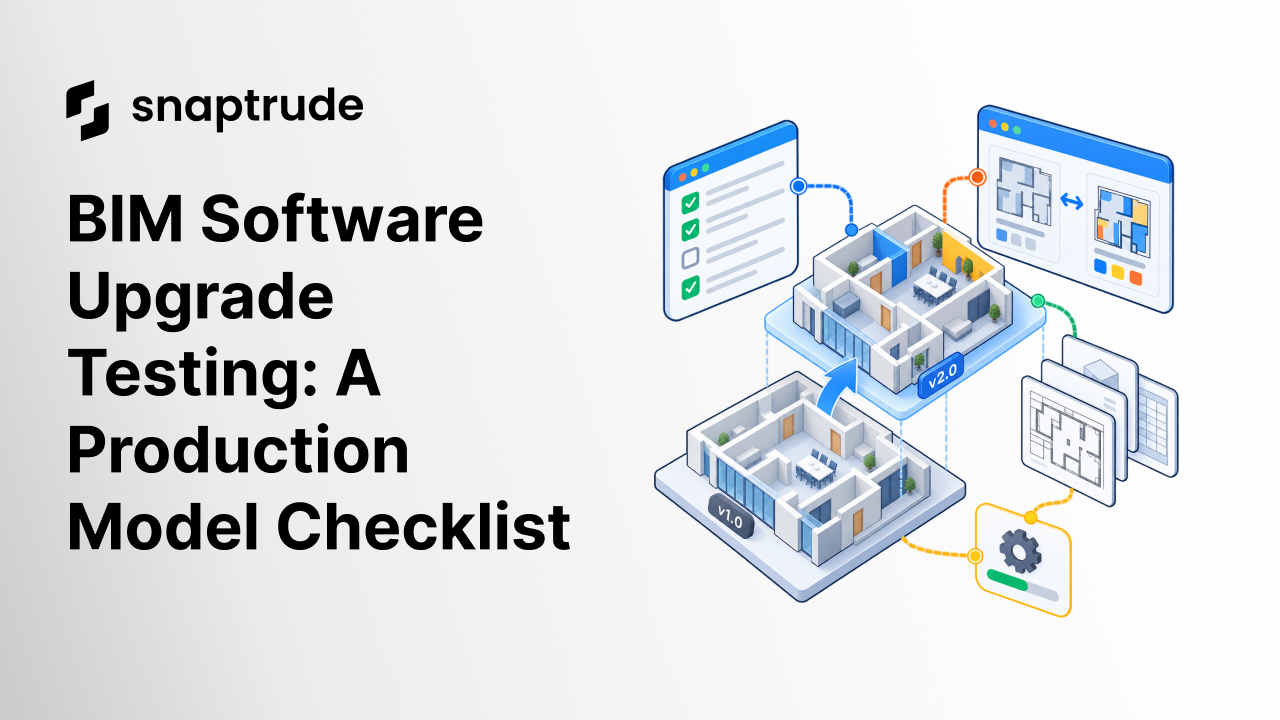
BIM software upgrade testing is a controlled comparison between a known production baseline and the same project in a new software version. Test model health, links, editing, collaboration, schedules, drawings, exports, save and reopen behavior, and recovery. Approve the upgrade only when representative project tasks pass and the team has a documented rollback path.
What does BIM software upgrade testing need to prove?
BIM software upgrade testing needs to prove continuity of work, not just file conversion. The upgraded project should preserve the information and behavior required for the next real task. That includes geometry, object identity, relationships, classifications, views, schedules, links, permissions, drawing output, and exchange workflows.
Start by writing an acceptance sentence before touching the production project. For example: “The representative model opens in the target version, a project architect can complete the agreed edit sequence, all critical links and schedules remain correct, the team can save and reopen the result, and required PDF, DWG, IFC, or downstream model exchanges pass comparison.”
That sentence prevents a common mistake: treating “upgrade completed” as “project ready.” Autodesk itself recommends a file-health check, the Audit option, and a test upgrade before cloud work is moved. It also notes that Revit models are not backward-compatible after an upgraded model is saved. Those facts make a separate test copy and a recovery plan operational requirements, not paperwork.
The test owner should identify:
Start with a representative BIM software evaluation.
How should a team build the pre-upgrade baseline?
Use a representative project, not an empty sample. A clean template proves installation, but it cannot expose problems tied to model history, links, families, object counts, permissions, worksharing, annotations, or exports.
Record the source model before conversion:
Do not try to make the model perfect immediately before the test. First distinguish accepted existing conditions from new defects. If a warning exists in the baseline, it is not automatically an upgrade failure. If its count, affected objects, or impact changes, it deserves investigation.
Choose a risk-weighted sample. Include a large or complex model, an older active project, a project with several links, a documentation-heavy project, and a model that depends on a critical consultant exchange. Small firms may use one project that combines several of those conditions. Larger firms should maintain a stable reference set for every supported workflow.
Which tasks belong in a BIM migration acceptance test?
The acceptance test should follow the way people actually work. Give each task a start state, action, expected result, evidence, owner, and pass condition.
The first edit matters. A model can appear visually complete while indexing, upgrading, or reconciling data in the background. Test one meaningful edit, save, reopen, and export after the interface says the model is ready.
For model exchanges, check usability in the receiving application. Geometry should be positioned correctly, required properties should be present, object categories should remain interpretable, and the receiving team should be able to perform its intended task. See how one bidirectional Revit exchange was built.
How should teams compare upgraded drawings and data?
Comparison should focus on controlled invariants and explained differences. Some visual or data changes may be legitimate consequences of a new version. Unexplained changes are the problem.
Select a small reference set of plans, sections, elevations, sheets, schedules, and exports. Compare headings, annotations, view extents, line hierarchy, object counts, schedule totals, units, classifications, and page geometry. Raster image comparison can reveal movement, but it cannot decide whether the underlying BIM data remains correct. Pair visual comparison with structured checks.
Classify every difference:
No production rollout should depend on “looks close enough.” Unexplained changes need an owner and disposition. The team may accept a known limitation, repair the source model, change the rollout sequence, or hold the upgrade.
When is a BIM software upgrade ready for production?
Release the new version when all critical workflows pass, noncritical exceptions have owners and workarounds, the source backup is protected, the rollback window is clear, and the project team knows what changes on cutover day.
Use a short release record:
Do not roll out only because the new version is available. Autodesk’s current support window is a planning constraint, but it does not replace project validation. Conversely, waiting until an older environment is difficult to support can remove repair options. Schedule tests early enough to resolve model health, plug-in compatibility, and delivery timing.
Snaptrude supports browser-based design, BIM objects and data, real-time collaboration, drawings, presentations, and several export formats. When evaluating any connected design platform, test the workflow with representative model content and agreed outputs. See how Snaptrude approaches the connected BIM workflow.
FAQ: Frequently Asked Questions
What is the difference between an upgrade and a migration?
An upgrade usually moves a model to a newer version of the same application. A migration may move data between products, formats, hosting systems, or information structures. Both need a baseline and acceptance test, but migration normally requires deeper mapping of objects, properties, coordinates, permissions, and downstream uses in the receiving environment.
Should every production model be tested before a BIM upgrade?
Every production model should be covered by a risk decision, but not every file needs the same manual test depth. Build a representative reference set, then inventory the remaining projects for age, size, links, worksharing, add-ins, deliverables, and deadlines. Test unusual or high-risk models separately and record why lower-risk models inherit the reference result.
What is the first check after an upgraded model opens?
Wait for the application’s documented processing to finish, then perform a meaningful edit in a known view. Save or synchronize, close, reopen, and confirm that the change persists. A successful open or progress message proves only that loading reached a state. It does not prove the project is ready for production work.
How do teams test add-ins and integrations during an upgrade?
Inventory every required add-in, script, connector, automation, and exchange endpoint. Confirm a target-version release, permissions, configuration, and support status. Run the project tasks that depend on each component, including round trips and error recovery. Do not assume an integration works because its toolbar loads or its sign-in succeeds.
What should trigger rollback after a BIM software upgrade?
Define triggers before cutover. Typical triggers include data loss, corrupted relationships, incorrect schedules, failed synchronization, unusable drawings, broken critical links, failed exchanges, or an unresolvable access problem. Rollback should point to a protected source model and named owner. It should not depend on finding an older copy after production work has already continued.
Does Snaptrude remove the need for BIM software upgrade testing?
No. Browser-based delivery can reduce some local installation work, but project teams still need to validate representative models, permissions, collaboration, drawings, data, and exchanges when workflows change. The approved product facts do not promise that every project or external connection behaves identically. Test the receiving task and keep a safe recovery path.
Try Snaptrude with a representative design workflow before standardizing it across projects.