Last updated:
BIM Schedule Formulas That Survive Regrouping
TL;DR
BIM schedule formulas fail when their meaning depends on a temporary row, column, or grouping position. Durable formulas reference stable model concepts, declare their scope, and are tested before and after sort, group, filter, and hierarchy changes.
What makes BIM schedule formulas durable?
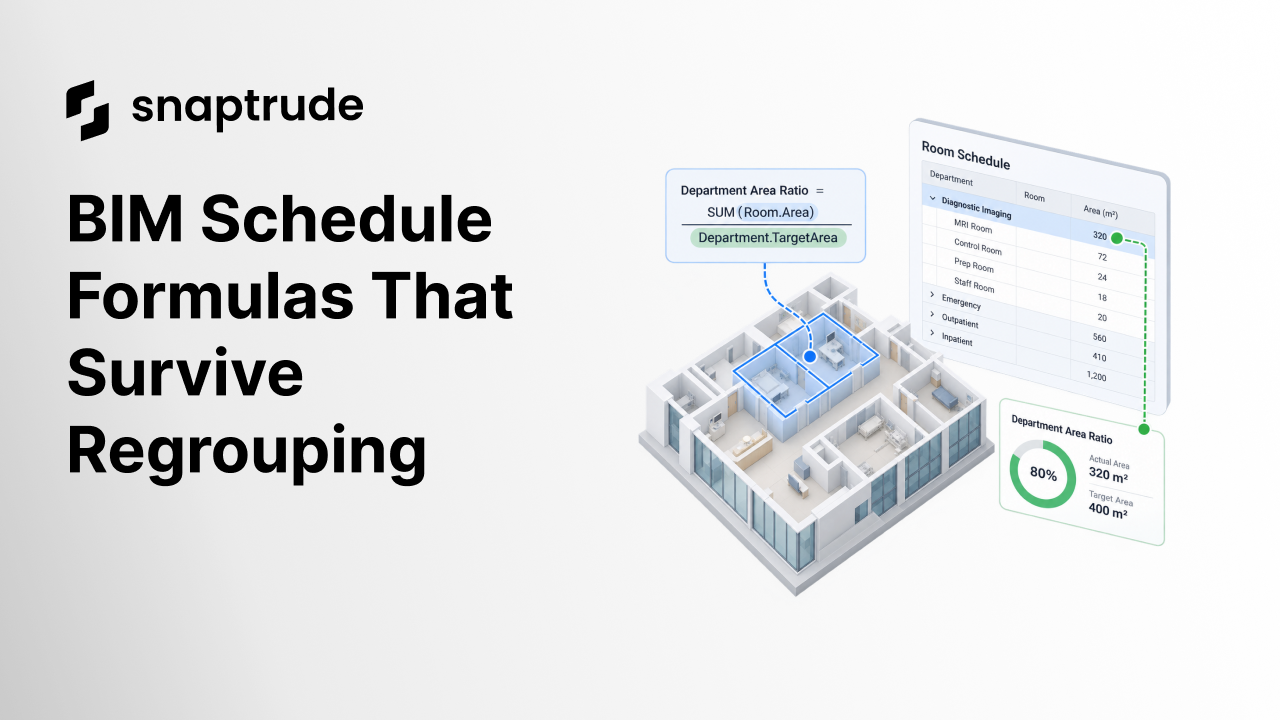
BIM schedule formulas are durable when the same calculation produces the intended result after the schedule is sorted, grouped, filtered, or reorganized. The key is semantic identity. A formula should depend on a named property, target, object class, or hierarchy level, not on where a cell happens to sit today.
Traditional spreadsheets make positional references easy. C12 * D12 is compact, but it does not explain whether C12 represents net area, room count, a department target, or a temporary subtotal. If a user inserts a row or moves a group, the formula may still calculate while answering the wrong question. That is more dangerous than a visible error because the result looks plausible.
Autodesk's Revit documentation describes calculated values as formulas built from fields available in a schedule. It also notes that schedule percentage calculations can use a grouping field as their basis. The calculation and the grouping structure are therefore related, but they are not the same thing. (Autodesk on calculated values)
A durable calculation needs five explicit parts:
1. Inputs: the model properties or governed targets it reads
2. Scope: project, building, story, department, room type, or instance
3. Operation: sum, ratio, difference, threshold, or conditional rule
4. Unit: area, count, percentage, length, cost, or another measure
5. Fallback: the result when an input is missing, mixed, or not applicable
If any of those parts is hidden inside a row position, formatting convention, or person's memory, the formula is fragile.
Why do BIM schedule formulas break after grouping?
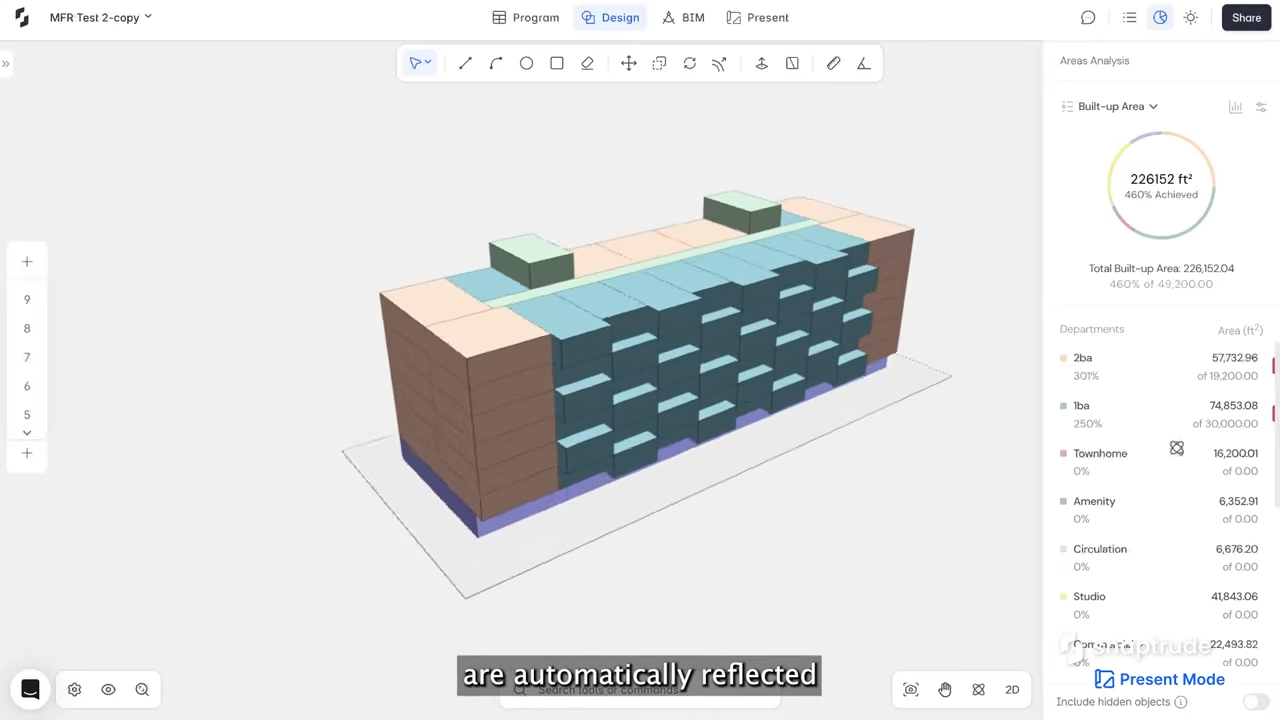
BIM schedule formulas break after grouping when a display operation changes the set or level of records being calculated. Grouping can collapse many instances into one row, introduce subtotals, alter percentage denominators, or move a target from one hierarchy level to another.
Autodesk documents that clearing “Itemize every instance” combines elements that share the same sorting and grouping values. It also lets schedules add headers, footers, subtotals, and grand totals. Those are useful presentation operations, but they change the visible grain of the table. (Autodesk on sorting and grouping)
The formula engine should make these changes visible. If a regrouping operation alters the calculation scope, the system should either update the reference through stable identities or flag the formula for review. Silent reinterpretation is the worst outcome.
Take one critical area ratio and write its input, scope, unit, and fallback in plain language before editing the formula.
How should you define semantic references for BIM schedules?
Define semantic references by naming what the value means in the model. Instead of “cell E18,” use a concept such as department.target_area, room.actual_area, story.gross_area, or program.required_count. The exact syntax depends on the platform, but the discipline is universal.
Start with an identity map:
Then separate presentation aliases from identifiers. “Imaging” may become “Diagnostic Imaging” in the schedule without changing the persistent identity used by formulas. Likewise, a department can move between stories while retaining the identity that connects targets, spaces, and calculations.
Finally, record inheritance. A project-wide target may be overridden by a building or proposal. A department target may apply to its rooms unless a room-specific value exists. The formula should resolve the active value through documented precedence, not through whichever cell appears closest.
What tests should BIM schedule formulas pass?
BIM schedule formulas should pass mutation tests, not just calculate correctly in the author's original layout. A mutation test deliberately changes structure while preserving the intended meaning of the data.
Use a copy of the schedule and run this sequence:
1. Rename a display label
Change a department or field label without changing its underlying identity. The result should remain stable. If it breaks, the formula depends on human-readable text that may be edited casually.
2. Reorder rows and columns
Move the calculated field and change the sort sequence. A semantic formula should not care about presentation position.
3. Group and ungroup instances
Collapse repeated objects into one row, then itemize them again. Verify that sums, counts, and percentages use the intended grain in both states.
4. Move an object within the hierarchy
Move a room to another department or a department to another story. Confirm which calculations should follow the object and which should remain with the original scope.
5. Apply and remove filters
Filter one object class or proposal. The schedule should identify whether a total now represents the visible subset or the complete model. Never let the user infer scope from formatting alone.
6. Create missing and mixed values
Remove one target, introduce a unit mismatch, and group records with different inputs. The formula should return a clear validation state rather than zero, blank, or a misleading single value.
7. Save, reopen, and exchange
Check the calculation after save and reopen, then after any required import or export. A durable formula includes persistence and exchange behavior in its acceptance criteria.
This test suite is especially useful for architectural programming, where categories, departments, room types, and proposal structures evolve throughout early design.
How do calculations differ from schedule presentation?
Calculations answer a question about model data. Schedule presentation determines how that answer is organized for a reader. Mixing those responsibilities makes formulas harder to audit.
A subtotal in a footer can be useful, but it should not become the only definition of a department target. A percentage shown in one schedule can be helpful, but its denominator should remain inspectable. When the formula definition is independent of the current table arrangement, teams can create multiple schedules for different audiences without duplicating business logic.
Learn how Program supports a structured route from project requirements to design.
What should a formula migration checklist include?
When moving calculations from spreadsheets or another BIM platform, do not copy expressions first. Map meaning first.
1. Inventory every active formula and where it is used.
2. Translate row and cell references into named model concepts.
3. Identify the original calculation grain and filter scope.
4. Record units, rounding, null handling, and mixed-value behavior.
5. Map project, proposal, building, story, department, room-type, and instance identities.
6. Define override and inheritance rules for targets.
7. Rebuild the calculation from governed fields.
8. Compare source and destination results with a fixed test dataset.
9. Run structural mutations and exception cases.
10. Assign an owner and review trigger for future schema changes.
Do not claim parity from matching one grand total. Two systems can reach the same total while allocating values differently across departments or proposals. Compare row-level inputs, group-level rollups, exceptions, and the final result.
Review a live BIM synchronization workflow for custom program sheets.
How does Snaptrude support BIM schedule formulas?
Snaptrude's Program supports importing program data, editing it in a structured table, setting target values, and connecting program information with design. Verified product documentation also describes custom program templates, live program-to-design feedback, automatic room-area calculation, program area tracking, and BIM schedules.
Those capabilities create a useful foundation for semantic calculations because targets, spaces, and measurable geometry can remain in connected context. They do not eliminate the need to define formula scope, identity, units, and exception handling. Teams should still test every critical calculation after regrouping, filtering, hierarchy changes, and exchange.
The practical standard is simple: a formula is trustworthy only when a reviewer can explain what it reads, what population it covers, and how it behaves when the program changes.
References
Calculated Values: Autodesk documentation explaining formula and percentage calculated values, schedule fields, and group-based percentage calculations.
Sort and Group Fields in a Schedule: Autodesk documentation covering sorting, grouping, itemization, headers, footers, subtotals, and grand totals.
Frequently Asked Questions About BIM Schedule Formulas
Q: What are BIM schedule formulas?
A: BIM schedule formulas calculate reporting values from fields connected to model elements or governed program data. Common examples include area variance, efficiency ratios, quantities, and cost totals. A reliable formula defines its inputs, scope, operation, units, and missing-data behavior. It should continue to answer the same question even when the schedule's visible sorting, grouping, or column order changes.
Q: Why does a formula change when I group schedule rows?
A: Grouping can change the visible grain from individual instances to combined records, add subtotals, or select a new denominator for percentages. If the formula relies on visible position or an implicit population, its meaning can drift. Define the aggregation and scope independently, then test the result in both itemized and grouped states with known input values and exceptions.
Q: Should BIM calculations use cell references?
A: Cell references can work in a fixed spreadsheet, but they are fragile when BIM schedules are reorganized. Prefer references to named fields, object identities, hierarchy levels, and governed targets. If a platform exposes only positional syntax, document the intended meaning beside the formula and add tests for row insertion, reordering, grouping, filtering, and schema changes before relying on the result.
Q: How do I validate an area or efficiency formula?
A: Start with a small dataset whose correct answer is known. Check input units, exclusions, hierarchy, numerator, denominator, rounding, and null handling. Then move a room, change a target, collapse groups, apply filters, and restore the original structure. Compare instance, group, and project totals. A passing grand total alone does not prove that allocation or scope is correct.
Q: How does Snaptrude connect program targets and design data?
A: Snaptrude's Program supports structured program import and editing, target values, custom templates, program area tracking, and live feedback as the design changes. Room areas can be calculated from connected geometry, and BIM schedules provide documentation context. Teams should still define which target applies at each hierarchy level and test formulas when proposals, departments, rooms, or groupings change.
Q: Can Snaptrude prevent every formula error automatically?
A: No BIM tool can replace a team's data definitions and review rules. Snaptrude provides connected program, model, and schedule capabilities that make inputs and outcomes easier to keep in context. Formula owners still need to define stable references, units, scope, override behavior, and exceptions. Critical calculations should have known-answer tests and be rerun after structural or exchange changes.
Choose one high-impact BIM schedule formula, replace every positional dependency with a named concept, and run the seven mutation tests before reuse.