July 9, 2026
3.54.0
Design Options with Proposals
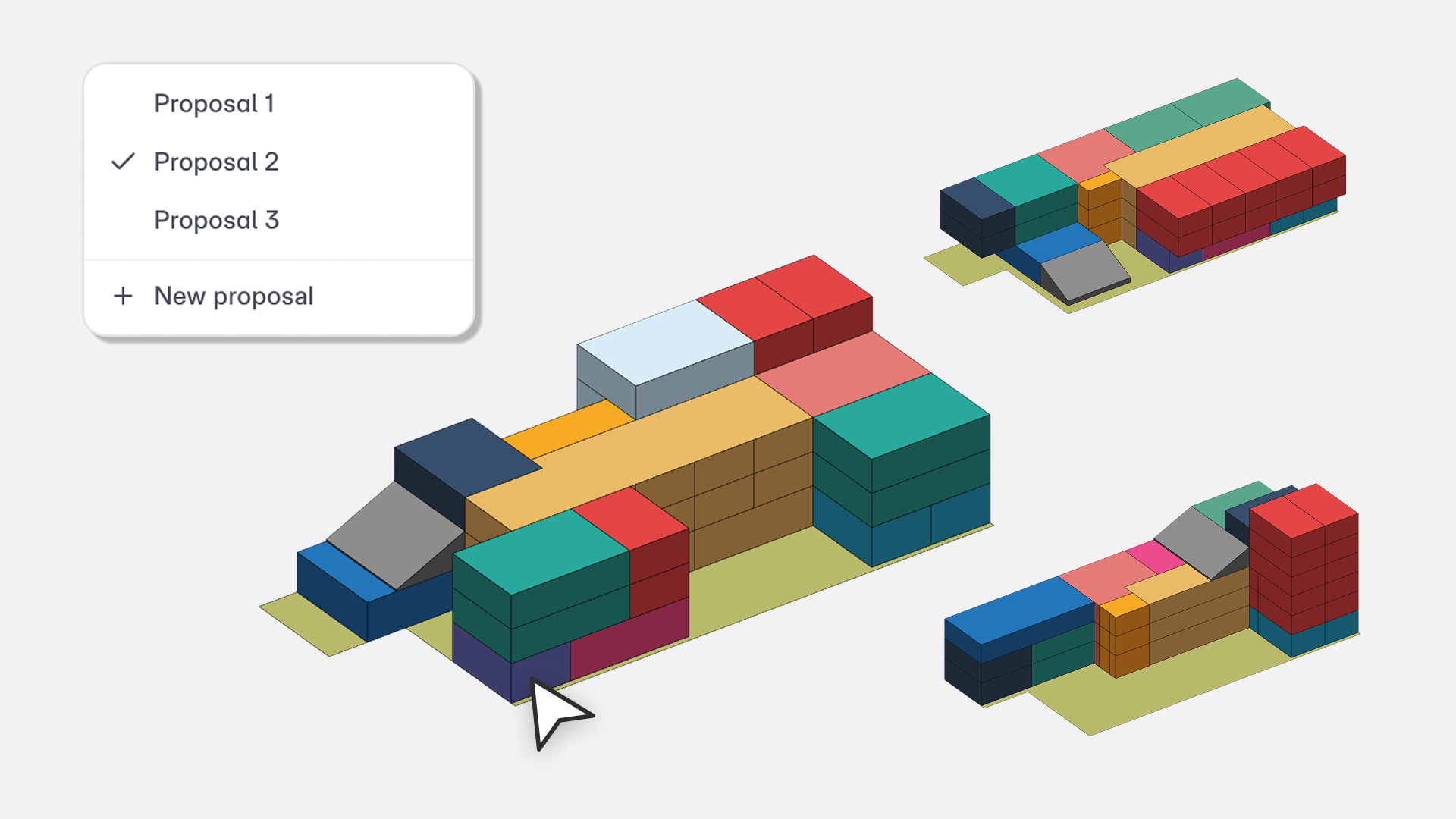
"Teams rarely design one option. Proposals keep every option in one project, each with its own clean model state."
– Advaith Vishwanath, Head of Operations
To compare schemes, you either duplicated layers inside one project or created a separate project for each option. Once options multiply, your area panel and program sheets stop reflecting a single scheme. You can now keep several design options inside one project as proposals.
What's new
- Proposals in one project. Each proposal has its own layers, saved views, program sheet, site analysis sheet and area metrics. Switch between them from the selector at the top of the left panel.
- Branch or start blank. Start a new proposal from scratch, or branch from an existing one and choose to share, duplicate or exclude each layer.
- Shared standards stay shared. Tags, materials, the project library and building configurations stay the same across every proposal.
- Compare in Present mode. Pull views from any proposal onto a sheet. Each view carries its proposal name, so it's always clear which option you're looking at.
What this makes possible
- Single-building options. Keep the site shared, option the building, and compare massing and program side by side.
- Master plan options. Branch a campus into competing layouts and read the area metrics for each.
- Client reviews. Present two or three schemes with every view labelled by proposal.
How it works while you model
The active proposal drives everything you see, edit and count. Existing projects move into Proposal 1 automatically, and nothing changes until you add a second one. Topographies, PDFs, images and CAD underlays can't be duplicated across proposals yet. Proposals are available on paid plans.