3.53.0
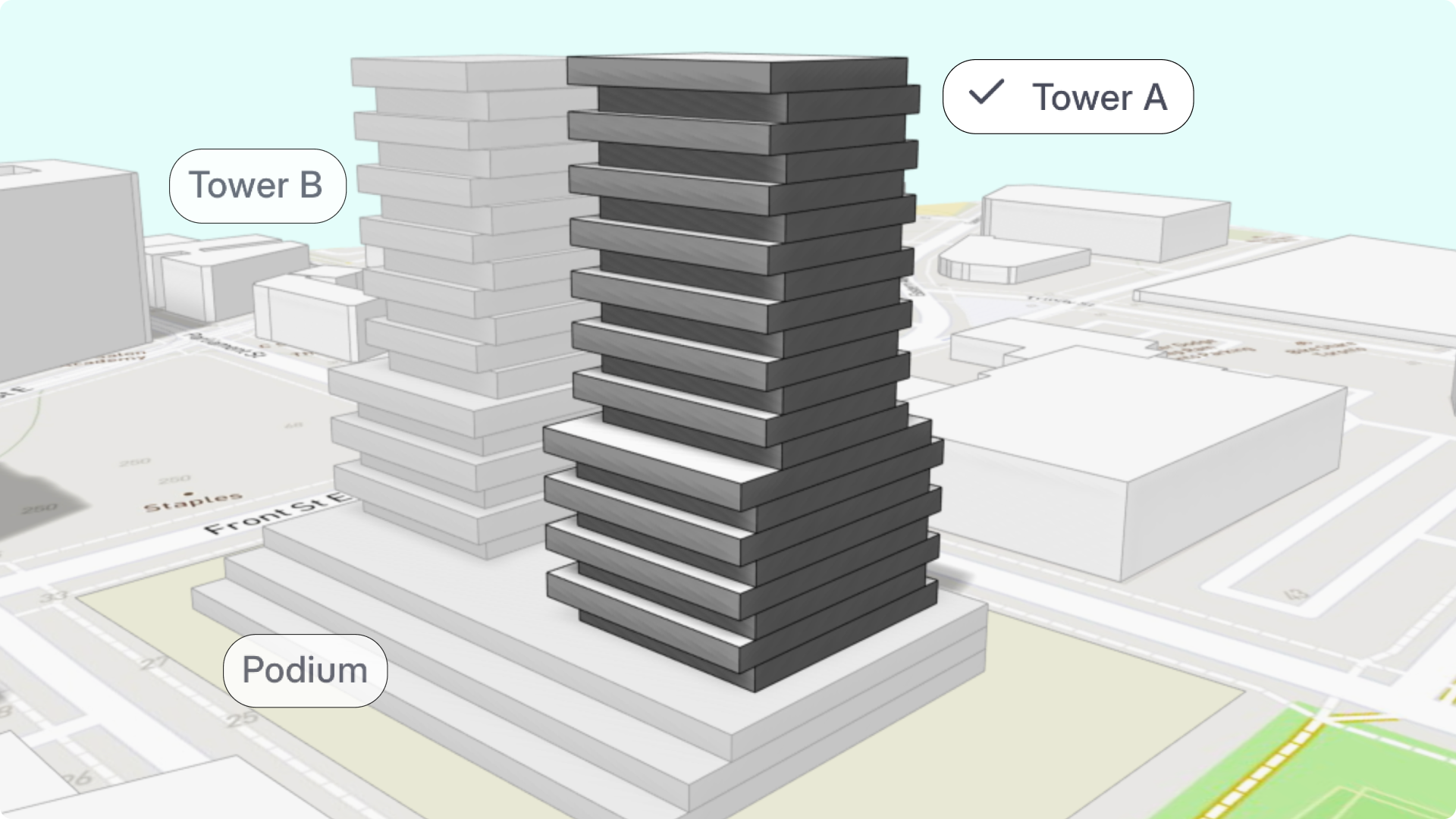
"The most common workaround we saw with campus and mixed-use projects was teams keeping separate files for each building and coordinating manually between them. This release handles that natively, inside one project."
– Spoorthi Narayan, Product Specialist
Until now, every Snaptrude project had one global story setup. One floor-to-floor height. One story stack for everything. That's fine when you're designing a single building in isolation. It breaks down the moment your project has a tower and a podium, or a campus with buildings of different heights, or a mixed-use scheme where the commercial base and the residential block above have nothing in common except a shared site.
You can now design multiple buildings within a single project, each with its own stories, story heights, plans, and views.
What's new
Buildings as a project layer
Each project starts with a default building. From there, you can add, rename, duplicate, or delete buildings as the project grows. Every building carries its own story count, story heights, plan views, 3D views, elevations, renders, and base offset relative to the project base point.
When you duplicate a building, you choose how: duplicate just the story configuration, or duplicate with geometry. The geometry option is useful for repetitive residential tower types in multifamily projects.
Per-building stories
Stories are no longer a project-wide setting. Each building has its own story stack. You can add and remove stories, set heights independently, and open plans directly from the Stories panel, all without touching any other building in the project.
Moving objects between buildings
If something ends up in the wrong building, select it and reassign via the Object Properties Panel. Change the building, change the story if needed. The vertical position updates automatically to match the new story heights. Horizontal position stays manual.
Shared and common elements
Some elements belong to the site, not to any individual building: roads, shared basements, bridges, phasing elements. You can either model these in a default building and reassign later, or set up a dedicated "Common Building" for anything that spans the whole site.
What this makes possible
Master plan layouts. A residential tower at 15' story heights and a commercial block at 20', modeled in one project, coordinated on one site.
Campus layouts. Academic block at 24', auditorium at 35', hostel block at 15'. Each building has its own setup. All visible together for coordination.
Podium and tower configurations. Podium parking at 12' story height with a residential tower above at 18'. One project. One model. No workarounds.
How it works while you model
Only one building is active at a time. All drawing and editing actions apply to the active building and its active story. Other buildings are visible as a read-only underlay by default, so you stay oriented without losing focus. You can toggle this off in view settings if you want a cleaner workspace.
Objects don't change building association when you move, copy, rotate, or flip them. Geometry edits (split, offset, etc.) also leave building association untouched. This is intentional: no accidental reassignments.