3.49.0
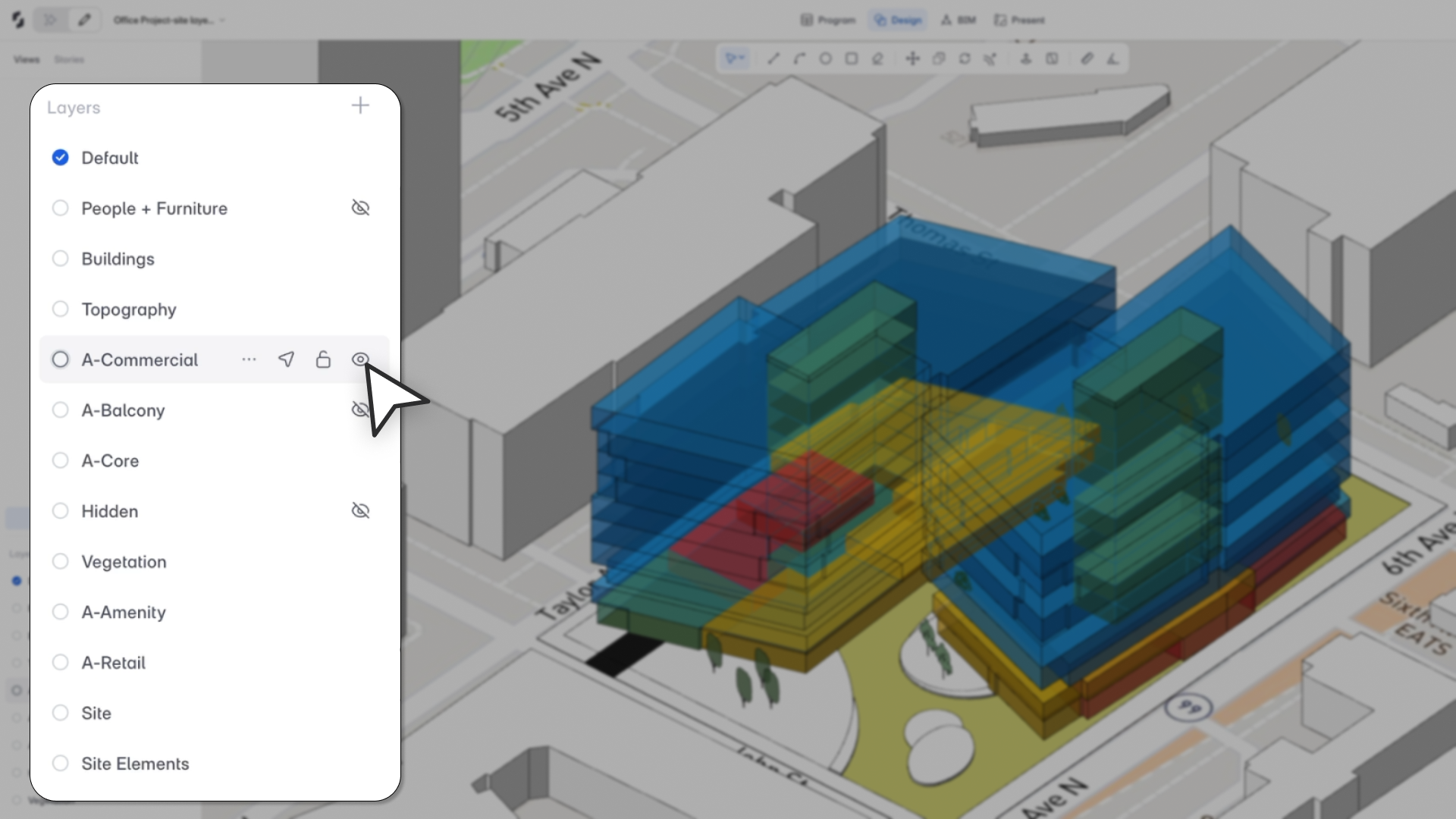
"Layers give you a proper way to separate design options, context geometry, and working content within the same project. It's the kind of organizational control architects expect from a design tool."
– Aman Jain, Product Specialist
What's New
Snaptrude now has a Layers system for managing drawing, visibility, and editing across your project. Every object belongs to one layer, and you control what's visible, what's locked, and what's active at any given time.
Layers Panel
A new Layers panel lets you:
- Create, rename, and delete layers
- Set the active layer (all new objects go here)
- Show or hide layers
- Lock or unlock layers
- Select all objects on a layer for bulk edits
Every project starts with a Default layer that cannot be deleted.
View-specific visibility
Each presentation view remembers which layers are visible or hidden. This means you can save a clean presentation view with only the layers you want, and a separate working view with everything turned on. Layer visibility is stored when you save or update a view.
Collaboration
Layers are built for teams. The active layer is personal to each user, so multiple people can work on different layers at the same time. Lock state is shared across the project, so when someone locks a layer, it's locked for everyone.
Program Mode integration
A Layer column is now available in Program Mode. You can reassign objects to different layers using a dropdown directly in the spreadsheet view.
Area Panel integration
Layers are available as filters in the Area Panel, so you can break down area metrics by layer.
Export support
Hidden layers are excluded from all exports. If a layer is hidden, its objects won't appear in model exports, view captures, or PDF output.
Supported Workflows
Design options: Create a layer for each design option or scheme. Hide and show layers to compare variations quickly. Lock layers you want to protect from accidental edits.
Model organization: Separate context, topography, BIM model, spaces, and planning blocks onto different layers. Hide what you don't need to reduce visual clutter.
Working vs. presentation views: Save focused working views with all layers visible, and clean presentation views with only the relevant layers showing. Switching between views restores layer visibility automatically.
Team workflows: Each user sets their own active layer. Teams can edit different layers in parallel. Locking a layer prevents edits for everyone.
Key Behavior
- Every object belongs to exactly one layer.
- New objects are always placed on the active layer.
- The active layer must be visible and unlocked before you can create objects on it.
- Copy/paste retains the original layer assignment, whether within the same project or across projects.
- Deleting a layer gives you the option to reassign its objects to another layer or delete them.
- Locked layers prevent editing globally, but objects on locked layers remain selectable.
- Sketch to BIM outputs are assigned to the active layer.
- Undo/Redo supports layer creation and deletion.
Limitations
- No nested layers or layer hierarchy.
- Layers work as filters in the Area Panel, not as a grouping option.
- Imported objects are placed on the active layer. There is no automated layer mapping during import.
- Layers cannot be created or renamed through Program Mode, only reassigned.