3.46.1
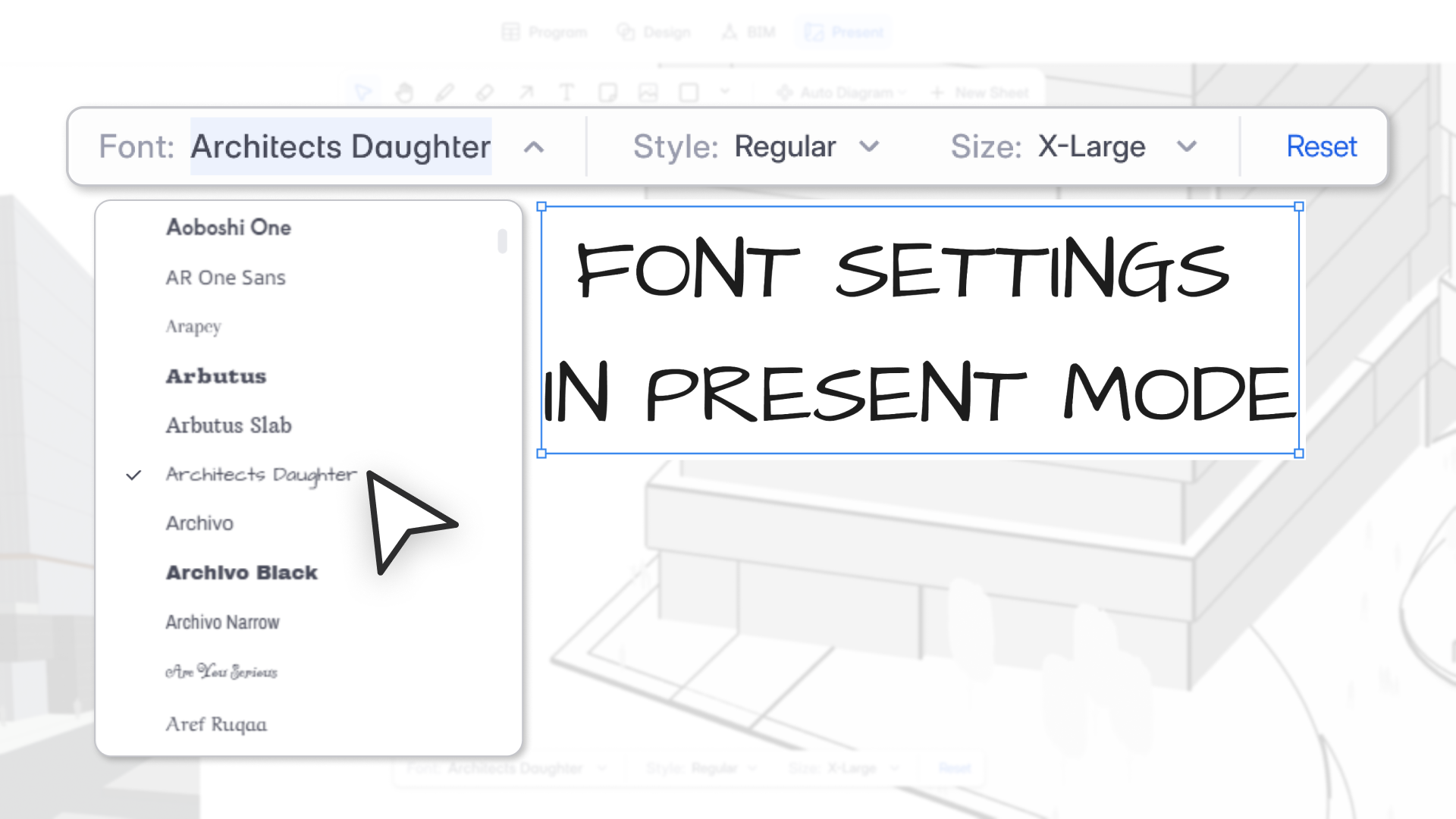
"Your presentations should look the way you want them to. Font settings give you direct control over how text appears across every view, without workarounds."
– Azhar Poonawala, Sr. Product Analyst
What's New
You can now control font, style, and size for all text in Present Mode, including space labels, area tags, department names, and any text you've added manually. Settings apply per view and carry through to PDF, PNG, and JPG exports.
Text Settings for Plan Views
When you bring an SVG view into Present Mode, text settings are available through the view's style settings panel. You can control labels, area tags, and department names for Spaces, Site Elements, and Departments.
Visibility options let you choose what text appears on each view: no text, labels only, labels with areas or departments, or all three together.
Font defaults to Arial on import. Changing the font updates all label types at once, but you can set different fonts for different object types if needed. The font dropdown shows a live preview so you know what each font looks like before you apply it.
Font Style (bold, italic, etc.) and Font Size (xsmall through large) can be set together for tags and metrics, or individually for labels. Available style options update based on the font you've chosen, since different fonts support different weights and styles.
For auto-diagrams, the same settings apply. A change made to one diagram in a set updates all diagrams in that set.
For raster images and manually added text, you can still control font style and size individually by selecting the text directly.
Individual Text Overrides
For SVG and auto-diagram views, you can override the view-level settings on any individual piece of text. When you do, a reset button appears next to the text settings so you can bring it back in line with the view styles at any point.
How Settings Behave
Settings apply to the selected view only, though you can select multiple views and update them together. Changes preview live and are visible to collaborators in real time. Settings persist through save, reload, template creation, and view updates. Duplicating or copy-pasting a view carries its settings across.