January 16, 2026
3.43.0
Site Boundary Definition
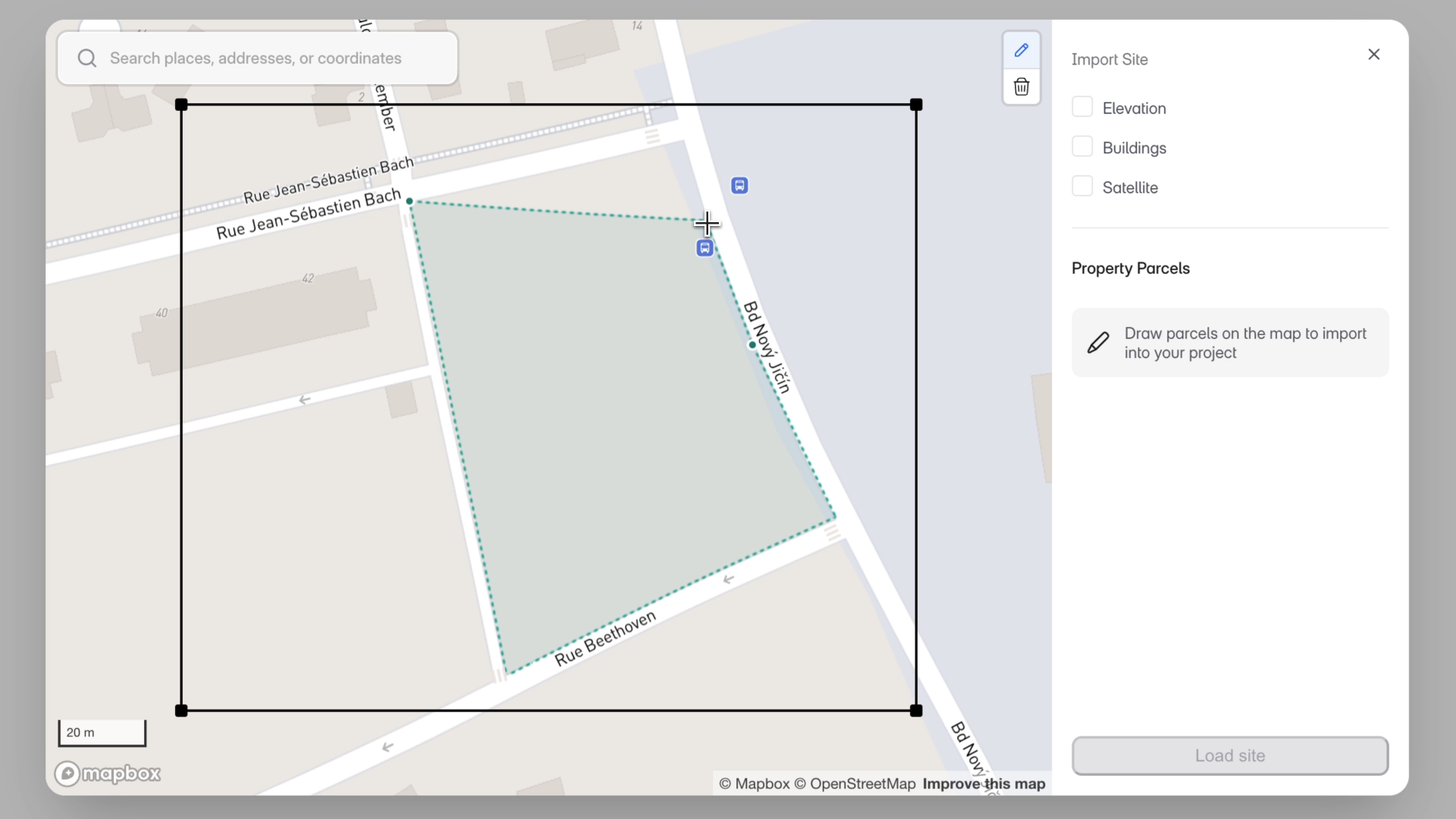
“Site accuracy is foundational. By letting users draw their own boundaries, we’re removing a major blocker for global projects and making AI-driven analysis far more dependable.”
– Azhar Poonawala, Sr. Product Analyst
What’s New
While importing your site in regions outside the USA and Canada, you can now draw a site boundary directly in the Topography modal. This ensures site analysis, AI Stack outputs, FAR calculations, and diagrams all use the correct boundary from the start.
How It Works
- When you open the Topography modal, you can:
- Select a property parcel (US & Canada), or
- Draw a site polygon on the map (ideal for projects outside the US & Canada).
- While drawing the site:
- Click to place vertices.
- Finish by pressing Enter, double-clicking, or closing the loop.
- Pan and zoom freely as you draw.
- After creating a site, you can:
- Edit the boundary by moving vertices.
- Delete and redraw if needed.
- See the automatically calculated site area (combined if multiple sites are selected).
How This Fits into Your Workflow
AI Stack
- You must define a site (select or draw) before importing topography.
- The drawn boundary is used for datum setup, FAR, setbacks, site analysis, and auto-diagrams, making AI outputs more reliable in regions without parcel data.
Blank Canvas
- Drawing a site is optional.
- You can still import topography alone, or draw the site first and bring topo in afterward.
Other Improvements
- Neighborhood buildings no longer show split lines.
- Map search now includes landmarks and points of interest (POIs).
This update makes Snaptrude far more usable globally, giving you full control over site boundaries before importing topography.