April 2026 Product Updates

April's releases were mostly about two things: making Revit import genuinely usable inside Snaptrude, and giving tags enough depth to become a real analytical tool. A few other updates in Program Mode round out the month.
Here is what shipped and how it fits into real workflows.
Direct Revit Import

You can now import a .rvt file without leaving Snaptrude. The full flow, from upload to processed model, happens inside the app. Click New Project, select Import Revit file, and drag in your file. Files up to 150 MB are processed directly; larger files surface a link to the Snaptrude Manager plugin.
Processing takes 3 to 5 minutes. If you navigate away before it finishes, the project tile shows a Processing state and you get a notification when the model is ready.
When you open the project, you land in an AI-ready workspace. The AI panel opens with a summary of what came through: object categories, Revit object counts, Snaptrude object counts, and fidelity percentages. A set of suggested queries helps you get started right away.
One thing worth knowing: files without rooms are not imported. AI queries in Snaptrude rely on room data, so a model without rooms would result in a project where the AI simply doesn't work. If your file has no rooms, you'll see the option to try a sample project or upload a different file. If you need to import a roomless file for space planning, that's still possible through Snaptrude Manager.
How architects can use this
The friction in the old workflow was the handoff: export from Revit, run through a separate converter, come back to Snaptrude. That process introduced enough steps that many teams skipped it or used it only when they had to. Doing it all inside the app changes when you'd reach for it. Renovation projects, client-supplied models, and BIM coordination reviews become much easier to pull into a Snaptrude workflow when the import is a two-step process instead of five.
Arc Walls in Revit Import

Simple arc walls from Revit now import as fully editable parametric walls in Snaptrude. Both single-layer and multi-layer walls are supported. Start and end points, arc radius, wall height, total thickness, and individual layer materials are all editable from the properties panel after import.
Previously, curved walls came in as static meshes, which meant any project with arcs needed manual rework before you could do anything useful with it.
A few limitations to note: arc walls with hosted doors or windows import as non-parametric geometry with the opening preserved but not editable as a wall. Non-circular arc walls are also non-parametric. Curtain walls and stacked walls are not supported as parametric arc walls.
How architects can use this
This matters most for projects where curved geometry is a core part of the design: hospitality, cultural buildings, healthcare with radial wings. If you have been importing those models and spending time rebuilding walls manually, that step is now gone for simple arcs. The wall properties come through correctly, and you can start analyzing or editing from the first load.
Tags: Color Mode, Filtering, and Revit Export

Tags got significantly more useful this month. Three specific improvements stand out.
Color by tag category. Any tag category can now drive Color Mode. Color your model by Phase, Building, Wing, Option, or any custom category you have created, without touching geometry. This works in Design mode, the right-click context menu, and Present mode. Saved views retain the selected tag-based color mode.
Filter selection by tag. You can now filter-select objects by tag value through the right-click context menu. Select multiple tag values across categories using OR logic, so any object matching at least one filter gets selected. Right-clicking an object also surfaces Same Label, Same Type, Same Tags, and Same Instances options for quick contextual selection.
Tag editing in Program Mode. You can now create, edit, delete, and assign tag values directly in Program Mode. Double-click a cell to assign an existing value, type to filter the dropdown, or press Enter to create a new value on the spot.
Export to Revit. Custom tag values assigned to spaces or flooring objects now export to Revit as room parameters. Objects with default tag values appear as empty room parameters.
How architects can use this
Color mode by tag is the most immediately visible change. If your project uses tags for phasing, you can now color the model by phase without creating separate objects or changing department assignments. It makes scheme comparison and phasing reviews much faster to set up and communicate. The Revit export means custom data you add in Snaptrude doesn't disappear when the model moves downstream: it travels with the room parameters into Revit, which closes a gap that required manual data entry before.
Custom Program Sheets in Program Mode
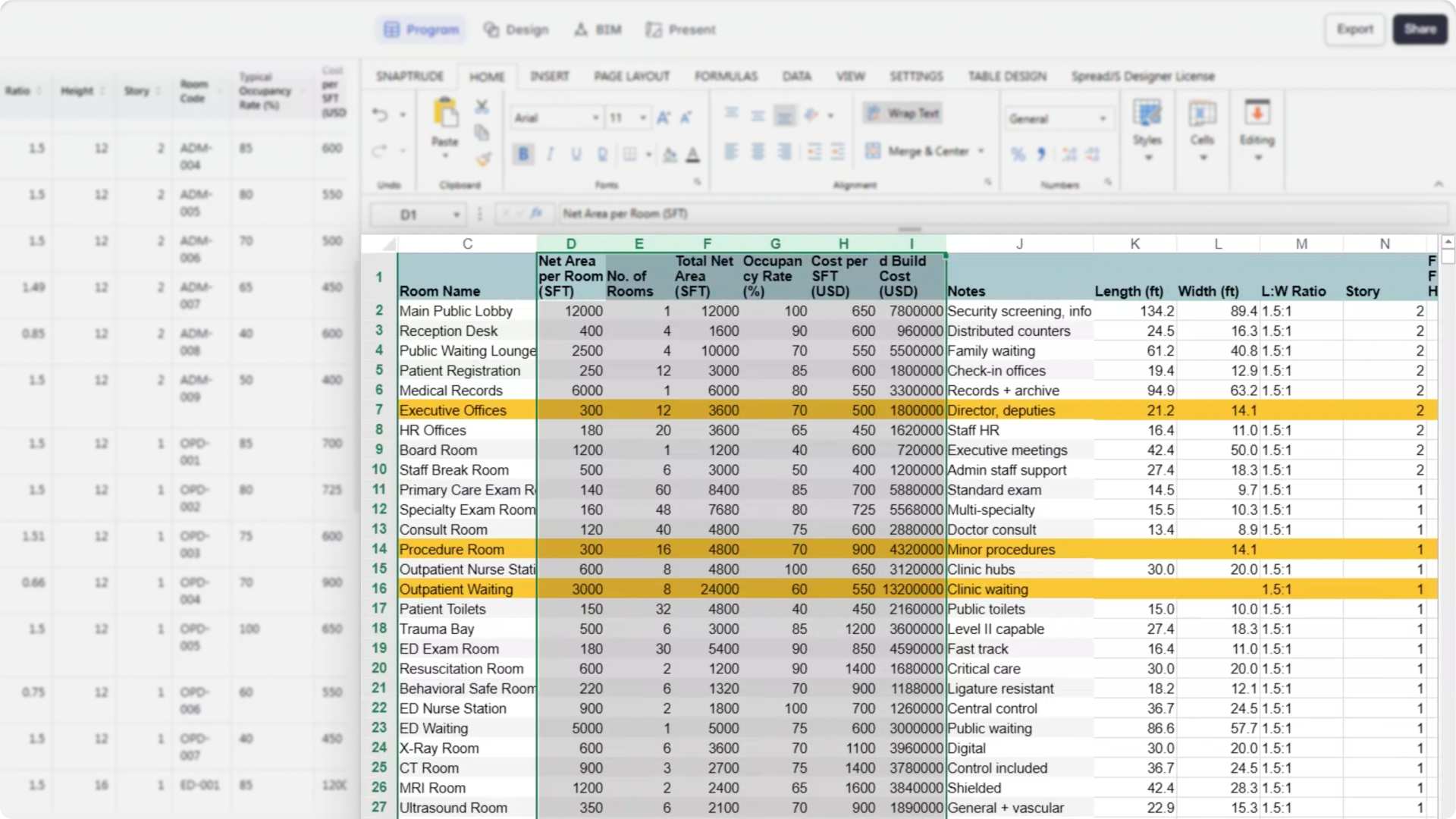
Program Mode now supports Custom Program Sheets: user-defined spreadsheet views where you define the columns, the grouping hierarchy, and the level of analysis you need. Think of them as Revit schedules, built for early-stage design.
Each sheet starts with Label and Achieved Area by default, and can include any combination of object properties, tags, calculated fields, and custom parameters. You can define grouping levels like Story, Department, and Space, or Building, Phase, and Space, or any structure your project requires. Count and Volume rollups generate automatically at each group level.
Editable fields include Department Name, Label, Type, Achieved Area, Story, Area Type, Width, Length, Height, and Ratio. Area, length, width, and ratio are mathematically linked: change one and the dependent values recalculate. You can create as many sheets as needed within a single project, each with its own configuration.
The Interpret workflow also got an update: it now extracts length, width, ratio, height, and story from program sheets when creating objects on the design canvas. Previously it was limited to count, label, area, and department. All extracted values appear in the Interpret Table before generation so you can review and edit them first.
How architects can use this
On larger or more complex projects, a single program view rarely covers everything you need to track. You might want one sheet for blocking and stacking by storey, another for gross vs. net by department, and another for unit mix by building. Custom sheets let you set those up and maintain them as live views connected to your model, rather than exporting data and managing it separately in Excel. The Interpret improvements mean program sheets with dimensional data now translate more accurately into canvas objects, which matters on projects where room proportions are defined in the brief.
In Summary
April was a productive month on the Revit interoperability side, with direct import and arc wall support both shipping in the same month. Tags crossed from organizational tool into analytical tool with color mode, filtering, and Revit export. And Program Mode got more flexible for teams who need to track multiple analytical views of the same program.


