Last updated:
Organize Your Program the Way Your Team Actually Thinks
Why does program organization always end up feeling rigid?
Most design tools give you one way to organize a building program: departments. You put spaces into departments, departments into a hierarchy, and that's how the program is structured.
For simple projects, that works. But real projects are rarely simple.
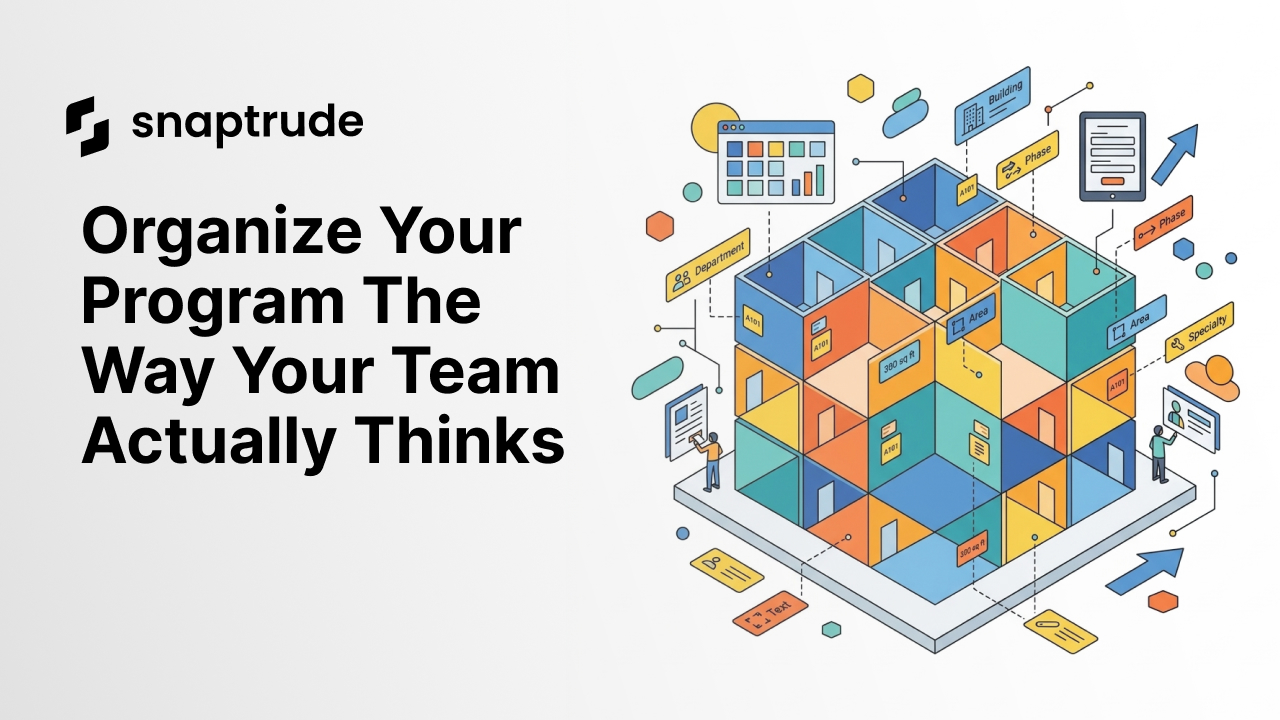
Think about a hospital. A patient room belongs to a department (Inpatient Care), but it also belongs to a building (North Wing), a construction phase (Phase 2), a specialty (Cardiology), and a clinical zone (Acute). Each of these is a real organizational dimension that matters to someone on the team: the architect, the facilities planner, the construction manager, the clinical operations lead.
When your tool only gives you one hierarchy, you end up doing workarounds. People embed phase information in labels. They create separate spreadsheets to track what the model can't represent. They manually cross-reference between the program and their own organizational logic.
"We wanted to give teams a way to organize their program that matches how they actually think about a project, not force them into a single hierarchy." That's how Aman Jain, one of our Product Specialists, described the motivation behind this feature.
If you've used Snaptrude's department-first or space-first workflows in Program Mode, you know we've been working on making program organization more flexible. Tags are the next step in that direction.
Key Takeaway: Real projects need more than one way to organize spaces. Tags let you classify spaces across as many dimensions as your project requires, without workarounds.
How do Tags work in Snaptrude?
Tags are built around two concepts: Tag Categories and Tags.
A Tag Category is a dimension of classification. Department is one. Building is another. Phase, Specialty, Zone, Client Group, anything that matters to how your team organizes the project.
A Tag is a value within a category. Under "Phase," your tags might be Phase 1, Phase 2, Phase 3. Under "Building," they might be North Tower, South Tower, Podium.
Each space gets one tag per category. A single exam room might be tagged as: Department: Outpatient, Building: East Wing, Phase: Phase 1, Specialty: Orthopedics. All four classifications live on the same space, with no conflict and no workarounds.
You create tag categories and assign tags in Design Mode. The tags then appear as custom columns in Program Mode, so you can see the full classification of every space in your program table. In the Area Panel, you can sort and filter by any tag category.
Here's what that means in practice:
View all Phase 2 spaces across departments. Filter the Area Panel by the Phase tag, and you see the total area committed to Phase 2, regardless of which department the spaces belong to.
Group by building instead of department. If you're working on a campus with multiple buildings, switch the Area Panel grouping to your Building tag category and see area totals per building.
Track specialty assignments in a healthcare project. Create a Specialty tag category, assign clinical specialties to patient rooms and treatment spaces, and track area allocation by specialty alongside the standard department breakdown.
Manage option studies. Create a tag category for design options (Option A, Option B) and tag spaces accordingly. You can then filter to see area totals for each option without duplicating the model.
Key Takeaway: Tag Categories are dimensions of classification. Tags are values within those dimensions. Each space gets one tag per category. They appear in Program Mode as columns and in the Area Panel as filters.
What changes for existing users?
If you've been using Snaptrude before this update, your projects migrate automatically.
Your existing Department names become Department tags. The grouping you had in Program Mode is preserved. Net/Gross behavior carries over. Nothing breaks.
The difference is that Department is now one tag category among many, not the only hierarchy. You can keep working exactly as you did before, or you can start adding new tag categories as your project needs them.
In Program Mode, tag categories appear as new custom columns. There's also a new Area Type column (Column U) that shows Net, Gross, or Excluded for each space at a glance. Department grouping still works through Department tags.
In the Area Panel, you can now sort by Tag Categories, Story, or Label, and filter by any tag or type. If you need to review just the Excluded Area, that's available as a separate view.
This connects to the broader updates we've been making to how spaces and departments work in Program Mode. Tags add another layer of flexibility on top of the department-first and space-first workflows.
Key Takeaway: Existing projects migrate automatically. Department names become Department tags. Everything you had before still works. Tags add new dimensions on top of the existing structure.
Where is this most useful?
Tags become especially valuable on projects where one organizational dimension isn't enough.
Healthcare. Hospitals are organized by department, but they're also organized by clinical specialty, patient acuity level, infection control zone, and construction phase. With tags, all of these can coexist on the same program without workarounds.
Campus and multi-building projects. When your program spans multiple buildings, you need to track area by building as well as by department. A Building tag category gives you that view instantly.
Phased construction. Tag spaces by construction phase and you can filter the Area Panel to see the total program for each phase. This is useful for feasibility studies where the phasing strategy is still being explored.
Mixed-use developments. A mixed-use project has residential, commercial, retail, and parking components that span departments and floors. Tags let you classify by use type independently from the departmental structure.
Large office projects. Tag by tenant, floor zone, or fit-out phase. When the program is 200+ spaces, the ability to slice the data across multiple dimensions saves real time.
If you're working within Snaptrude 3.0's connected workflow, tags become even more useful because the classification stays consistent as you move between Program Mode, Design Mode, and the Area Panel. You're not re-classifying spaces every time you switch views.
Key Takeaway: Tags are most useful on complex, multi-dimensional projects: healthcare, campuses, phased construction, mixed-use, and large programs where a single hierarchy isn't enough.
What's coming next?
Tags currently apply only to Spaces. You can read tags in Program Mode, but creating, editing, and assigning tags from Program Mode isn't supported yet. That's coming.
Advanced tag analytics and tag-based color modes are also on the roadmap. We want you to be able to color-code your model by any tag category, so you can see phasing, specialty, or building assignment directly on the canvas.
For now, the foundation is in place. You can create tag categories, assign tags, and use them to organize, filter, and analyze your program in ways that weren't possible before.
Tags are live in Snaptrude. Open an existing project or start a new one to try them. Watch the full walkthrough here.
Frequently Asked Questions