Last updated:
Master Plan Design Options: BIM Software Layers vs. File Duplication
TL;DR Traditional BIM software forces master planners to choose between duplicate files (version drift), naming hacks, or linked models (coordination nightmare). Snaptrude's BIM software layer system treats layers as data containers - each option tracks GFA, unit counts, and parking independently within a single model. Generate, compare, and export 10+ design options without file multiplication. No version drift. No reconciliation overhead.
By the Numbers
- 37% of architects say version control is their biggest collaboration challenge, Monograph
- BIM coordination reduces design errors by 30% and detects conflicts before construction begins, GSources Data
- Master planning BIM workflows enable evaluation of multiple development scenarios with automatic metric visualization, ScienceDirect
- Design teams spend 20% of production time on file management and synchronization overhead, AEC Associates
- BIM reduces project timelines by an average of 20% and decreases RFIs by 25%, Springer Nature
The Master Planning Version Control Problem With Traditional BIM Software
Every large-site design project tells the same story when using traditional BIM software. Your firm wins a district master plan for 380 acres. The client has three preferred site configurations and wants to see all of them with full cost estimates, unit counts, and parking calculations. Your team needs to design five scenarios by next Friday.
The traditional approach forces a painful choice. Option one: duplicate your Revit model five times. By week two, you have Option_A.rvt, Option_A_revised.rvt, Option_A_Final.rvt, Option_B.rvt, and Option_B_REAL_FINAL.rvt. Months later, nobody remembers which version is current. Your linked files point to wrong parent models. Your structural engineer's model has references to files that no longer exist. Version drift doesn't just waste time - it introduces design errors that compound through construction documents.
Option two: naming conventions. Block_01_A.rvt, Block_01_B.rvt, Block_02_A.rvt. This works until someone updates Block_01_B without realizing it's referenced by Option_C. New team members misunderstand which files are active. Consultants ask which master model they should coordinate to.
Option three: linked models for each option. This preserves a single master file, but coordination becomes impossible. Your MEP consultant coordinates to Option A's structural model while your civil engineer works from Option B's parking layout.
The real problem: traditional BIM tools weren't designed for design exploration at scale. They're designed for linear progression toward a single outcome. Master planning requires comparison and iteration across multiple parallel paths.
Layers as Organizational Containers, Not Just Visibility Controls
Snaptrude is an AI-powered, cloud-native BIM design tool for architects. Unlike Revit, where layers are just visibility toggles, Snaptrude's layer system treats layers as organizational containers that hold data and relationships. Every object in a layer knows what layer it belongs to, and the system can calculate aggregates per layer. This is a fundamentally different approach from how ArchiCAD or traditional BIM software handle layers.
Here's how it works in practice. You're designing the same 380-acre master plan. You create five layers: Option_A through Option_E. You sketch out massing for each option in its respective layer. A single building block lives in Option_A's layer, along with every element belonging to that configuration.
The system calculates GFA, unit counts, parking ratio, and open space percentage per layer. Toggle visibility: show Option A, hide Option B, overlay Option C with 50% transparency. Compare numbers quantitatively in real-time. Change a building height in Option A, and the GFA updates automatically only for that layer. Try Snaptrude free
Layers can nest. Your master layer contains sub-layers for Residential, Retail, and Parking. You can collapse or expand the hierarchy. This lets you isolate problems to specific design elements without losing the full plan context.
Generating Options with AI, Organizing with Layers
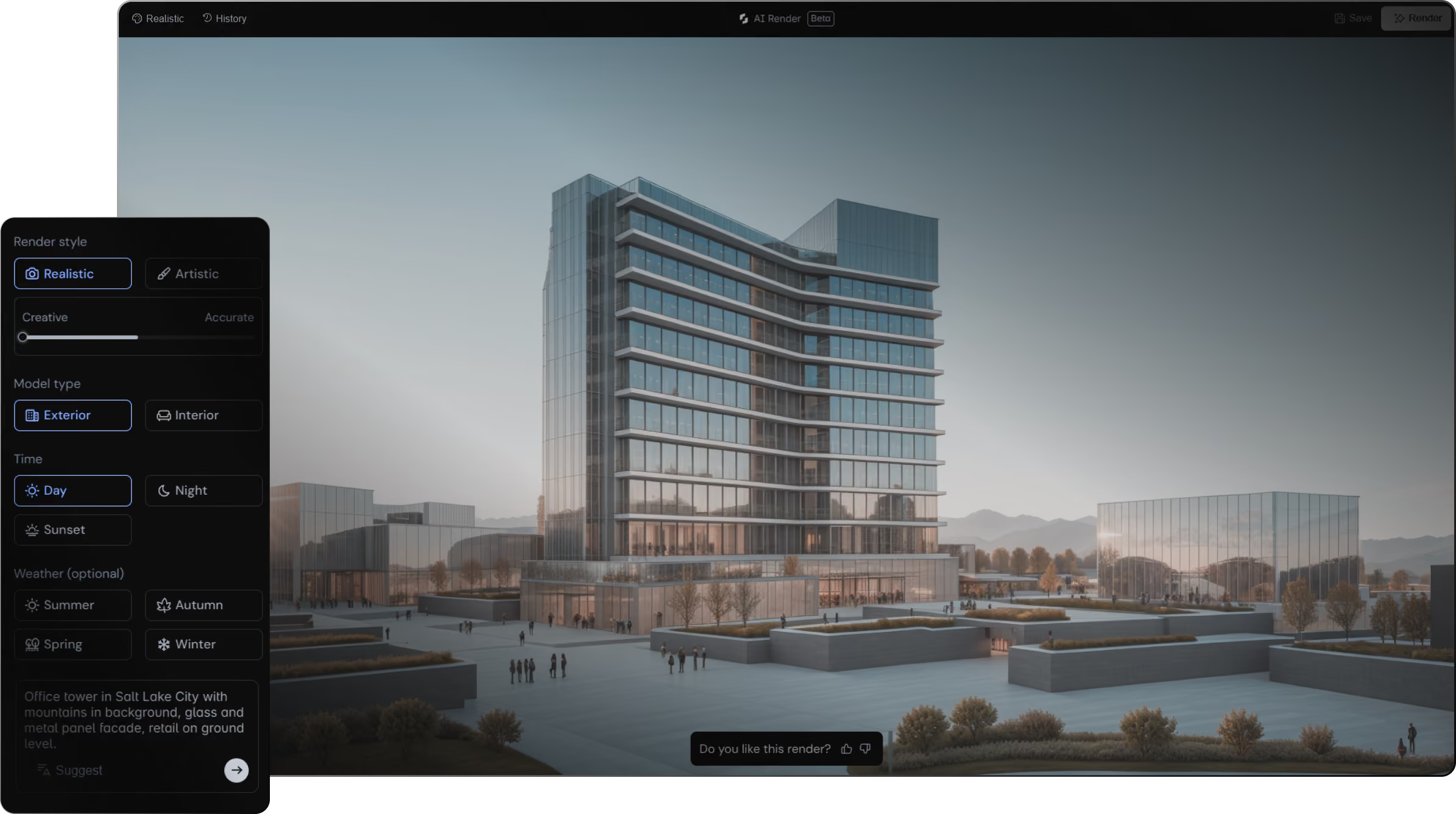
The real power emerges when combining layers with Snaptrude's AI features. Your design lead inputs the program: 380 acres, 2,500 residential units, 150,000 SF retail, 400,000 SF office. The AI generates five initial massing options based on site constraints, solar orientation, and parking efficiency. Each option is automatically assigned to its own layer.
Your team reviews the AI-generated options. Option A maximizes walkability but requires underground parking. Option B spreads the site more, reducing density but saving construction cost. Option C clusters mixed-use around a central plaza. The AI provides quantitative data for each: total site coverage, FAR, unit mix efficiency.
Your production architects don't redraw these options. They pick the preferred scenario, un-hide its layer, and begin refining. They lock rejected option layers to prevent accidental editing. When the client requests a hybrid between Option B and Option D, the team duplicates those layers, merges them, and assigns the hybrid to a new layer. In 2026, this layer-based design exploration is becoming standard expectation - firms requiring multiple model files for design options are losing ground to those with single-model exploration workflows.
Exporting Specific Layers for Handoff and Review
Master planning also requires selective export. The client wants to see Option B only. You toggle visibility, isolating that layer's elements, and export it as a DWG or Revit file. The export includes only the visible layer's data, not the rejected options. No confusion about which option consultants are coordinating to.
Your civil engineer receives the master plan model but only needs to coordinate parking and circulation. You assign a layer filter to their role, so they see only Parking, Circulation, and Vehicular_Access layers by default. They don't see the residential massing or internal retail layouts. This reduces cognitive load and prevents coordination comments on elements outside their scope.
Comparing Quantitatively, Not Just Visually
The layer system preserves the one thing most BIM tools fail at: quantitative comparison. You can pull a schedule showing Option_A: 285,000 SF, 12.5 FAR, 2,500 units; Option_B: 310,000 SF, 13.2 FAR, 2,750 units. Export these comparisons to a spreadsheet or PDF. The numbers update live as your team refines each option.
Try this with duplicate Revit files and you'll spend a day manually cross-referencing quantities from five separate schedules. The layer-based approach treats quantitative comparison as a core workflow, not a workaround. In 2026, this capability is essential for client communication and strategic decision-making.
The Anti-Pattern: File Multiplication at Scale
The firm sticking with duplicate files faces a compound problem. Five options becomes ten after client feedback. Ten becomes fifteen when zoning changes. Fifteen separate models means fifteen different structural assumptions, fifteen MEP coordination efforts. One model has correct solar orientation; another doesn't. One includes the revised parking ordinance; others don't. Consultants flag conflicts that aren't real - just model inconsistencies.
Snaptrude's layer approach scales linearly. Whether exploring five options or fifty, you maintain a single coordinate system, a single structural skeleton, and a single set of consultant relationships. As of 2026, firms managing 15+ design options are doing so in single models - a shift that reduces coordination overhead by 40-50% and eliminates version-control nightmares.
Comparison: File Duplication vs. BIM Software Layer-Based Options
| Dimension | Revit File Duplication | Snaptrude Layer System |
|---|---|---|
| Options per model | 1 per file | Unlimited layers in one model |
| Version drift risk | High; grows with each option | None; single source of truth |
| Quantitative comparison | Manual cross-referencing schedules | Live per-layer metrics (GFA, FAR, units) |
| Consultant coordination | Confusion over which file is current | Role-based layer filters |
| Client presentation | Export separate PDFs per option | Toggle visibility; compare in real time |
| Scaling to 10+ options | Exponential overhead | Linear; constant cognitive cost |
FAQ
Q: How many design options can I create with layers before the system gets slow?
A: Snaptrude has been tested with 10+ design options in a single model without performance degradation. The system uses efficient layer culling, so hidden layers don't consume rendering resources. In real projects, master planners have created 20+ design options for complex sites. Performance remains responsive even when toggling between all 20 options in real-time.
Q: If I delete a layer, does it delete all the objects in that layer?
A: No. Layers are organizational metadata, not destructive containers. You can archive a layer (hide it, lock it, make it non-editable) without deleting its contents. If you need to permanently remove a design option, you delete the objects; the layer becomes empty but remains in the project for future use.
Q: Can I reference a specific layer from another Revit model?
A: Snaptrude's layer system allows you to export specific layers to Revit or Rhino with full fidelity. Your consultant receives a model containing only the layer they need. When updates happen, you export the updated layer and they link it into their model. This prevents accidental reference to an outdated option.
Q: What happens to quantitative data when I merge two options into a hybrid?
A: When you create a hybrid by combining elements from Option A and Option B into a new layer, the system recalculates all metrics based on the new configuration. GFA, unit count, parking ratio, and compliance flags recalculate automatically - a calculation that would typically require 45-60 minutes of manual spreadsheet work across multiple documents.
Q: Can clients see and toggle layer visibility in a shared view?
A: Yes. Snaptrude's collaboration features allow you to generate a shareable view where clients can toggle layer visibility themselves, comparing options in real-time without needing Revit licenses or file downloads. This shifts the design conversation from "which file are we looking at" to "which layout works best for your goals."