Last updated:
How to Import Property Parcels in USA and Topography Automatically in BIM Software
.jpg)
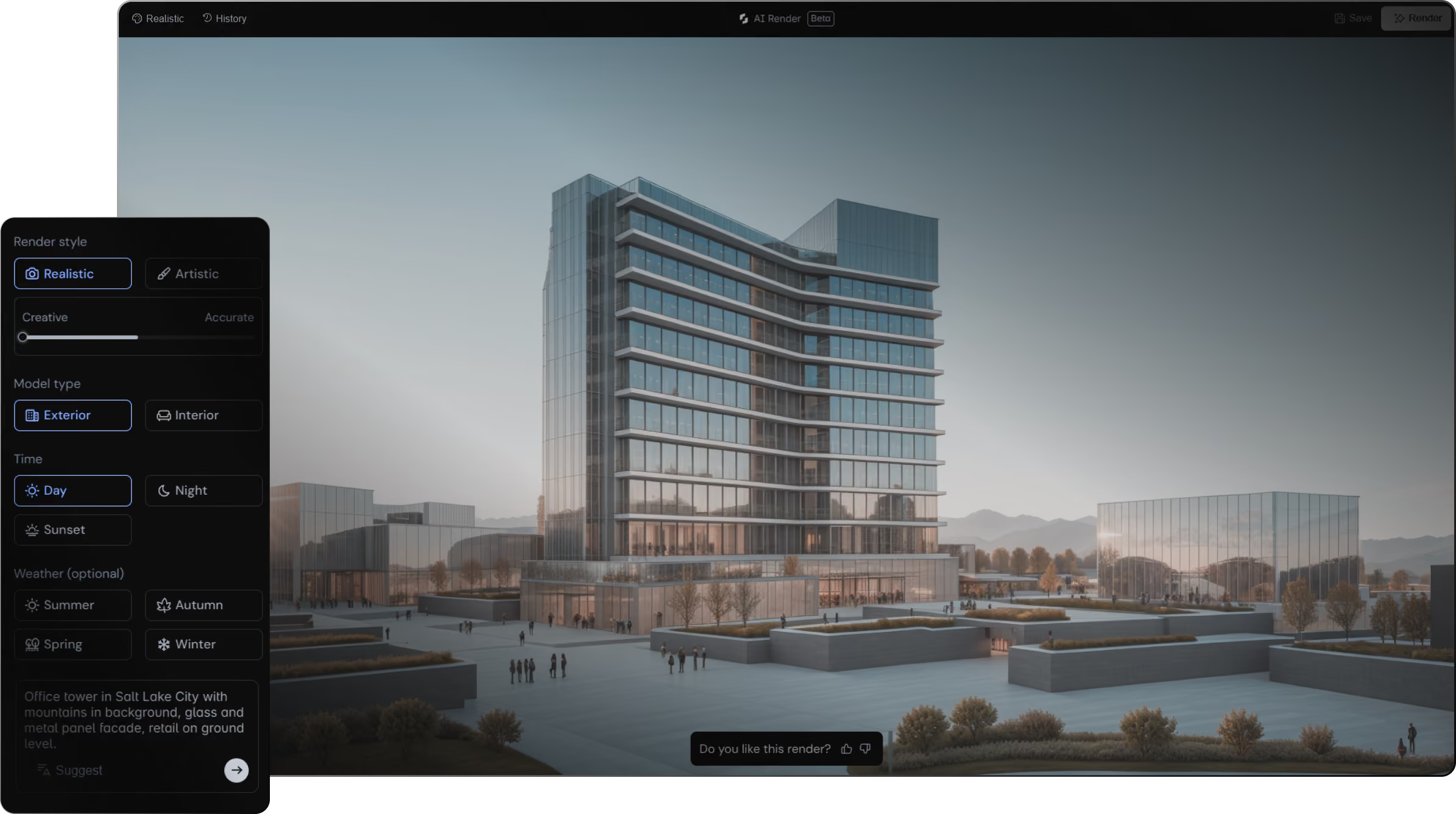
TL;DR Snaptrude automatically imports US property boundaries and real elevation topography from an address or map click. You get the legal parcel outline with FAR tracking, a toposolid from real terrain data, surrounding buildings in context, and street network -- all in two clicks. Site analysis that used to take hours of tracing and alignment is ready before you start designing.
By the Numbers: Site Setup and Construction Cost Control
1. 0.5 to 2 days spent on manual site setup in traditional BIM workflows before a single design decision is made
2. 85% of construction projects experience cost overruns, with an average overrun of 28% early site analysis is one of the few controllable variables - Propeller Aero, 2025
3. 20% reduction in project timelines reported from BIM adoption across AEC firms Pinnacle Infotech, 2025
What Is Property Parcel Import in BIM Software?
Property parcel import is the automatic retrieval of a site's legal boundary, terrain elevation, and contextual surroundings directly into a BIM model from a map address. Rather than manually tracing parcels from county records, importing survey data, and aligning topography in a separate tool, the import happens automatically when you enter an address.
Snaptrude an AI-powered, cloud-native BIM design tool for architects provides automatic parcel and topography import for US addresses. Enter the address or click the map, and the site is ready to design on.
What the Traditional Site Setup Process Actually Costs
Site analysis for a new project in a traditional workflow involves:
1. Locate and download the parcel map from county records
2. Trace the property boundary into CAD or BIM
3. Request or purchase a survey for accurate topography
4. Import topography data and convert to a usable surface
5. Align the parcel boundary with the topography
6. Source and model surrounding buildings for context
7. Check for easements and calculate buildable area manually
For most projects, this process takes between half a day and two full days before a single design decision has been made. For early-stage concept work where the site might change, this setup cost is a real barrier to thorough site analysis. And the downstream consequences are real: 85% of construction projects experience cost overruns, with an average of 28% over budget - much of it traceable to decisions that were made without complete site information at the schematic stage.
What Snaptrude Imports Automatically
When you import a property parcel in Snaptrude, the platform pulls four things in a single operation:
Property boundary. The legal parcel outline imported as a site object with automatic area calculation and FAR (Floor Area Ratio) tracking. This is the boundary used to verify zoning setbacks and buildable area - it updates in real time as your design grows.
Toposolid with real elevation data. Not a flat plane. Actual terrain elevation from the site location, modeled as a parametric surface you can design directly on. You can see immediately how the building relates to grade - where the foundation meets the terrain, where cut and fill will be required.
Surrounding buildings in context. Buildings adjacent to and near the site are imported as massing objects with approximate heights. You can see how your building fits into the urban fabric before placing a single wall.
Street network and site context. The street grid and adjacent parcels import with the site, giving you orientation context and the ability to check setback requirements visually.
How to Import a Property Parcel in Snaptrude: Step-by-Step
Step 1: Open a New Project and Navigate to Site Import
In Snaptrude, open a new project and select the site import tool. You will see a map interface.
Step 2: Enter the Address or Click the Location
Type the project address or click directly on the map. Snaptrude identifies the parcel boundary associated with that location.
Step 3: Review and Confirm the Import
Snaptrude shows you the property boundary and terrain data before importing. Verify the correct parcel is selected (useful for corner lots or sites with multiple parcels), then confirm.
Step 4: Design on Real Site Conditions
Your site is imported. The toposolid shows real terrain, the parcel boundary shows the legal limit, and surrounding context gives you orientation. Begin placing your building massing on actual site conditions.
Understanding the Toposolid: What It Shows and How to Use It
The toposolid is not a visualization tool - it is a functional site analysis surface that informs design decisions.
What the toposolid reveals:
Where the building base intersects the terrain (building base vs. grade)
How much earth needs to be removed (cut) to level the site
How much fill is required where the building sits below grade
Retaining wall locations where grade changes exceed practical thresholds
Adjusting the datum. The datum is the reference elevation for your building typically finished floor at grade. After importing a toposolid, Snaptrude defaults to the average site elevation. You can adjust:
Raise the datum: The building sits above grade. More cut, less fill. Useful for flood-prone or steeply sloped sites.
Lower the datum: The building sits below grade. Less cut, more fill. Useful for sites where minimizing building height is a zoning requirement.
Adjusting the datum updates the cut and fill visualization in real time, so you can see the earthwork implications of building placement decisions before committing to a configuration.
Sustainability Analysis on Real Terrain
Once the site is imported, you can run sun hours and shadow studies directly on the toposolid. Snaptrude's sustainability dashboard shows:
Which building surfaces receive 9 or more hours of sunlight annually (solar panel and green roof suitability)
Which surfaces are shaded for most of the year (outdoor space placement in hot climates)
How shadows from your building affect adjacent properties (relevant for zoning and neighbor approvals)
This connects site conditions to environmental design decisions. Sustainability analysis runs on real terrain with real context, not on an isolated model.
Integration With FAR Tracking and Zoning Verification
The imported parcel boundary drives live FAR (Floor Area Ratio) tracking in Snaptrude. As you add floors and building area, the FAR updates automatically relative to the parcel area. You can see in real time whether your design complies with zoning maximums before investing in detailed design development.
Combined with the setback visualization from the street network import, this gives architects an early warning system for zoning compliance that previously required a separate manual calculation.