Last updated:
AI Floor Plan Generator: Paste Any Spreadsheet, Get a 3D Layout
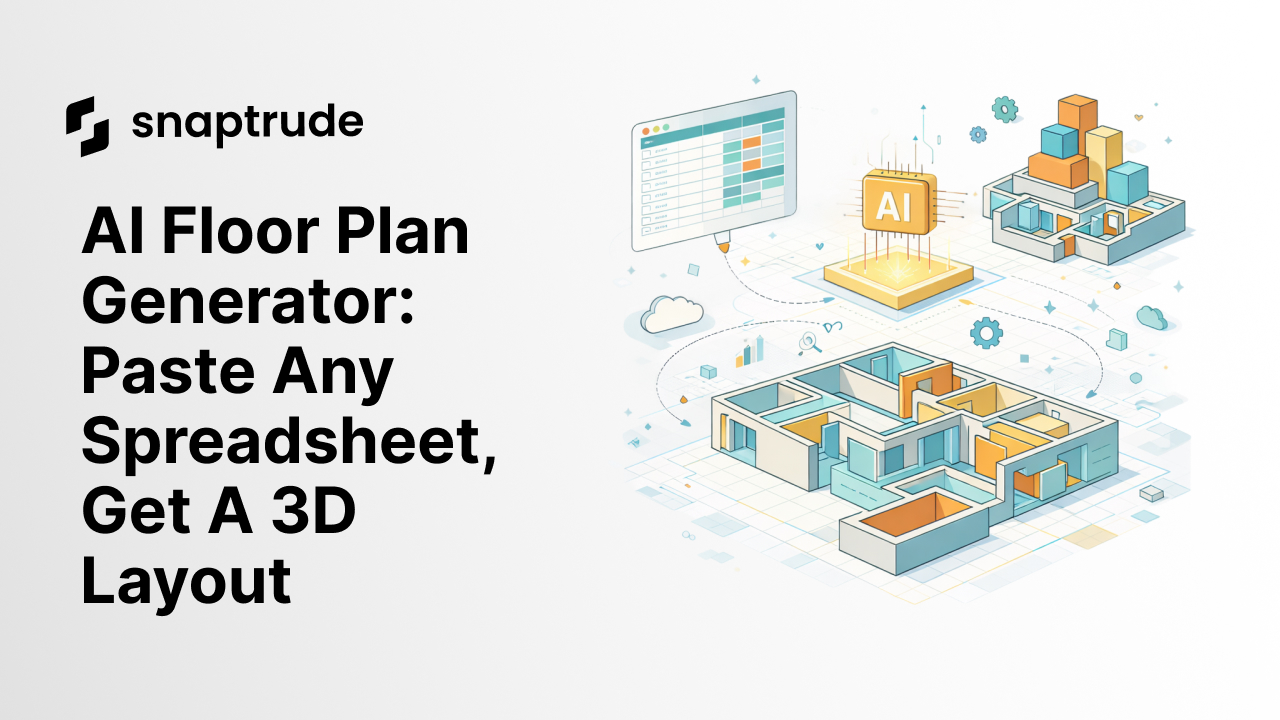
TL;DR: Snaptrude's AI Program Interpreter (part of Snaptrude's AI-powered, cloud-native BIM design platform) eliminates the tedious translation between client program spreadsheets and 3D spatial layouts. Paste any spreadsheet, add optional context, hit generate. Snaptrude interprets the structure, follows your instructions, and produces a program-linked 3D model. Change the spreadsheet, the model updates. Change the model, the spreadsheet updates. One source of truth, zero re-entry.
Every architecture project starts the same way:
The client hands you a program. It's a spreadsheet, sometimes clean, often messy. Column names don't match your system. Space types are described in their language, not yours. There are gaps, inconsistencies, custom calculations you have to reverse-engineer.
And then you spend hours, sometimes days, translating that spreadsheet into a spatial layout. You calculate proportions, allocate areas, group spaces into departments, figure out adjacencies. You sketch bubble diagrams. You test configurations. You manually convert numbers into geometry.
It's tedious. It's error-prone. And it's exactly the kind of task AI should handle.
That's why we built the AI Program Interpreter in Snaptrude's Program Mode.
What It Does
Here's the workflow:
You paste the client's program spreadsheet into Snaptrude. It doesn't matter if their column names don't match ours. It doesn't matter if they call it "space type" and we call it "space name." The AI interprets the context.
You can add a custom prompt to guide the interpretation:
"This is a university project. Map departments correctly. Add circulation space for corridors. Create a game room in the student zone."
Hit generate. The AI reads the spreadsheet, understands the structure, follows your prompt, and produces:
- Department-level organization (groups of related spaces)
- Individual spaces with correct areas and dimensions
- Adjacency relationships (which spaces should be near each other)
- A 3D layout (visual representation of the program)
You're not re-entering data. You're not manually creating every space. You're not translating spreadsheet rows into model objects one by one.
You're pasting, prompting, and generating. The AI handles the rest.
Try Snaptrude free: Start your next project by pasting your spreadsheet→
Why This Matters
On a recent demo with a design firm, we showed this feature. The architect pasted a messy program spreadsheet: inconsistent column names, missing data, custom notes in random cells. We added a prompt explaining the project context, hit generate, and watched Snaptrude populate the program and create a 3D layout.
The response: "This I have not seen anywhere else, definitely."
Here's why this is a step change:
Traditional BIM tools require you to conform to their data structure. You import spreadsheets, but only if they match the expected format. You create spaces, but only by manually placing them. You calculate areas, but only by modeling geometry first.
The AI Program Interpreter flips this. It conforms to your data structure. It reads your spreadsheet, however you've organized it, and generates the model.
This isn't just faster. It's more accurate. Because the AI isn't guessing; it's interpreting context. It knows "Student Lounge" and "Student Common Area" are probably the same space type. It knows a university project needs different circulation ratios than a hospital. It knows to create a department grouping even if your spreadsheet doesn't explicitly include one.
AI Program Interpreter vs. Traditional BIM Spreadsheet Import
How It Works
The AI Program Interpreter uses the latest LLM models to understand context. That means:
1. Flexible Column Mapping
Your spreadsheet says "Room Name." Snaptrude expects "Space Name." The AI maps them automatically. No manual field matching, no rigid import templates.
2. Context Awareness
You tell the AI: "This is a university project." It adjusts space types, circulation ratios, and department groupings accordingly. It understands project typology and applies appropriate assumptions.
3. Custom Prompts
You can guide the AI beyond basic interpretation:
- "Add 15% circulation space for corridors"
- "Group spaces by building, then by floor"
- "Create a game room in the student services department"
- "Use metric units and round to nearest 5 sqm"
The AI follows your instructions while interpreting the spreadsheet.
4. Bidirectional Sync
Once the program is generated, it's not static. Edit the spreadsheet, the 3D model updates. Edit the model, the spreadsheet updates. One source of truth, zero re-entry.
5. Handles Complexity
Multiple departments, custom parameters, phasing, zones, cost buckets: the AI interprets whatever structure you bring. It doesn't force you into a predefined schema.
The Workflow
Here's what it looks like in practice:
Step 1: Paste the Program
You receive a client's program as an Excel file. Open it, copy the data, paste it into Snaptrude's Program Mode. The AI scans the structure.
Step 2: Add Context (Optional)
If your program is messy or context-dependent, add a prompt: "This is a corporate office project. Map space types to office, meeting, collaboration, and support. Add 20% circulation. Group by floor."
Step 3: Generate
Hit generate. The AI interprets the spreadsheet, follows your prompt, creates departments and spaces, assigns correct areas and dimensions, and produces a 3D layout.
Step 4: Refine
You now have a program-linked model. Adjust spaces in 3D, the spreadsheet updates. Change areas in the spreadsheet, the model resizes. Use AI Adjacencies to pack spaces based on relationships. Manually refine the layout to match design intent.
Step 5: Design Forward
You're no longer translating program to design. You're designing with the program. The data and the geometry are the same object. Changes propagate instantly. Client updates the program? Paste the new version, regenerate, done.
Try Snaptrude free: Start your next project by pasting your spreadsheet→
Real Use Cases
Multi-Site Analysis
An architecture firm analyzing 5-6 sites simultaneously needs centralized, accurate program data. They paste the program once, generate layouts for each site option, compare in real time. When the client adjusts space requirements, they update the spreadsheet and all site layouts regenerate.
Complex Programs with Custom Parameters
A healthcare project with custom zones, phasing, and cost tracking. The AI interprets the full structure: not just space names and areas, but zones, phases, construction costs, equipment allowances. Everything flows into the 3D model.
Rapid Iteration for Early-Stage Clients
A client hasn't finalized their program yet. It changes weekly. Instead of manually rebuilding the model every time, the architect pastes the updated spreadsheet, regenerates, and moves forward. The coordination tax disappears.
What Makes This Different
Most BIM tools support spreadsheet import, but only if your spreadsheet matches their format. You're mapping fields manually, cleaning data, wrestling with rigid schemas.
The AI Program Interpreter doesn't require clean data. It interprets messy data. It understands context. It follows custom instructions. And it generates not just a list of spaces, but a spatial layout with departments, adjacencies, and proportions.
This is the bridge between programming and design that hasn't existed before. The spreadsheet and the model aren't separate anymore. They're two views of the same object.